Blocks
If you’re new to AEM Universal Editor or would like to understand the features available in this WKND example better, use below steps to make yourself familiar.
Available Blocks
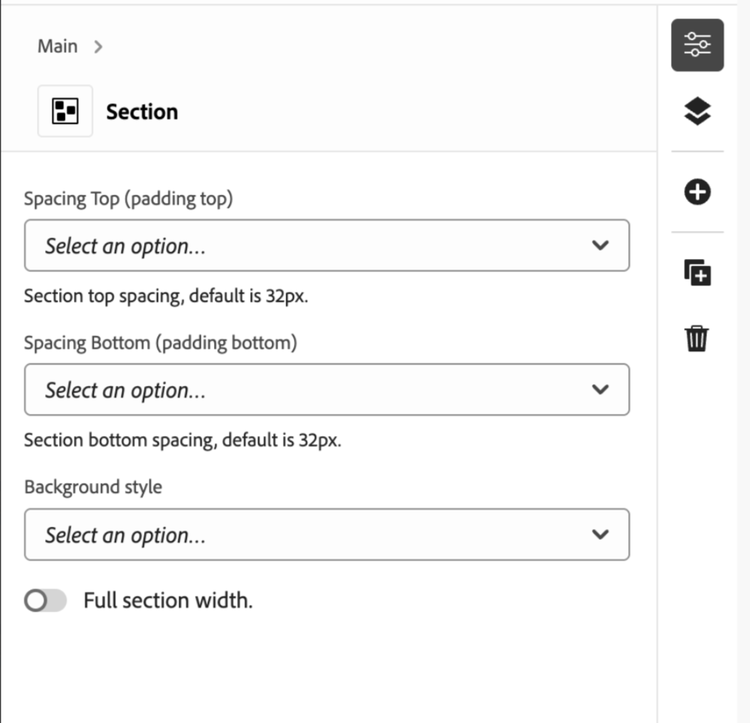
- Section – Section works like the main container block. All the main blocks can be added to Section Block only. It is used to organize blocks in the page using below authorable properties.
- Spacing Top
- Spacing Bottom
- Background style
- Full section width
- Hero – Once you introduce a Hero block on your page, following fields appear for authoring:
- Banner with Text
- Image
- CTA
Here is a brief about the properties of a Hero block.
-
Enable Underline in Title: Toggles an underline styling on the hero H1 title text.
-
Hero Layout Style:
- Default (overlay): Text overlays the image.
- Image Left / Image Right: Image and text are side-by-side.
- Image Top / Image Bottom: Image stacked above or below text.
- Image-Background Text-Left / Text-Right: Image as background; text aligned left or right.
-
CTA Style:
- Link: Renders CTA as a text link.
- Button: Standard primary button.
- Button secondary: Secondary/outlined style.
- Dark Button: Dark variant for contrast on light backgrounds.
-
Background Style:
- Default: Inherits normal page styling.
- Theme Dark: Dark-themed background with contrasting text.
- Theme Light: Light-themed background.
-
Cards – Once you author a Cards block on your page, it acts like a container where you can add Card blocks by clicking on + button from right panel.
Each Card components comes with the following style options:
-
Style:
- Default: Standard card layout with default styling
- Image Top: Image positioned at the top of the card
- Image Bottom: Image positioned at the bottom of the card
- Teaser Overlay: Image with text overlaid on top
- Teaser Card: Card with teaser-style layout and styling
-
CTA Style (Call-to-Action button/link):
- Link: Renders as a text link
- Primary Button: Standard primary button styling
- Secondary Button: Secondary/outlined button styling
- Dark Button: Dark variant for contrast on light backgrounds
-
Carousel – Once you introduce a Carousel block on your page, it acts like a container where you could add multiple Card blocks. Once you introduce a Card block in Carousel Block component.
Individual Card Style Options (within Carousel):
-
Style:
- Default: Standard card layout with default styling
- Image Top: Image positioned at the top of the card
- Image Bottom: Image positioned at the bottom of the card
- Teaser Overlay: Image with text overlaid on top (dark overlay background)
- Teaser Card: Image with text in a styled card overlay positioned at bottom-right
-
CTA Style (Call-to-Action button/link):
- Link: Renders as a text link
- Primary Button: Standard primary button styling
- Secondary Button: Secondary/outlined button styling
- Dark Button: Dark variant for contrast on light backgrounds
-
Video – Embed videos inside columns (full URL is required for rendering on EDS pages)
- Teaser – Once you introduce a Teaser block on your page, following fields appear for authoring:
- Image/Video
- Text
- CTA
- Content Fragment – Once you introduce a Content Fragment block on your page, following fields appear for authoring:
- Browse an existing Fragment (elements are editable inline)
Content Fragment related configurations:
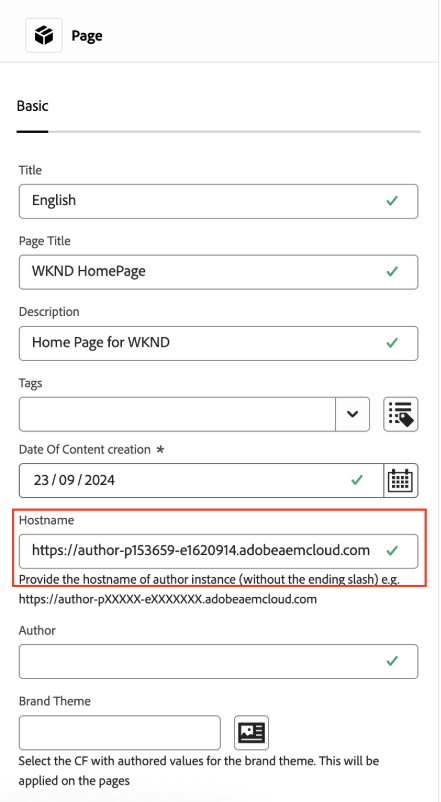
- Navigate to the page block where you intend to use the Content Fragment and open its properties.
- Please update the value of field name Hostname with your AEM instance hostname. This is important to make Content Fragment component work properly.
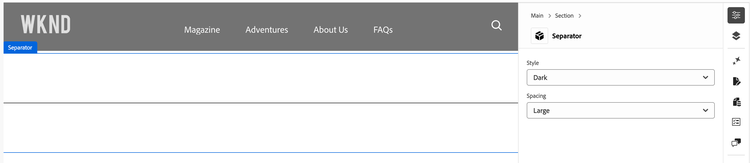
- Separator – Separator allows you to provide whitespace or draw a line between blocks. Once you introduce a Separator block on your page, following fields appear for authoring:
-
Dynamic Media Template: Please click here to move to Dynamic Media Template documentation.
-
Dynamic Media Image: Dynamic Media Image support feature of smart imaging and Dynamic Media with Open API.
-
Adaptive Form: Adaptive form block acts like a container for adaptive forms field. For more details, please click here to move to Adaptive Form documentation.
Default: Text, Title, Image, Button, Columns