Create a new site using WeHealthcare EDS Template
Prerequisite
You’ve completed the previous step of setting up your own GitHub Repository before proceeding to this page.
- Navigate to AEM Start Screen > Sites > Create > Site from template
- Choose latest version of WeHealthcare EDS Template 2.x.x
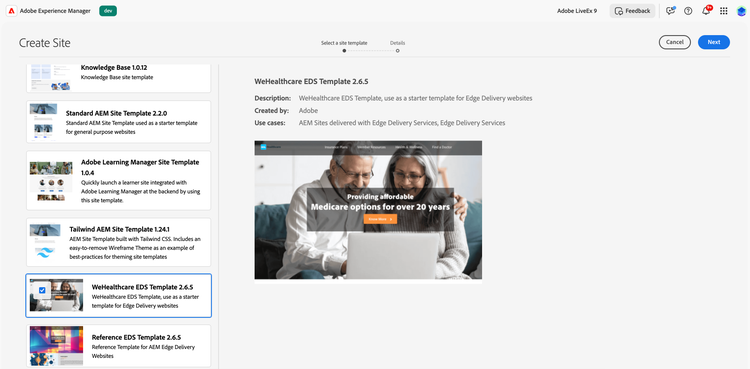
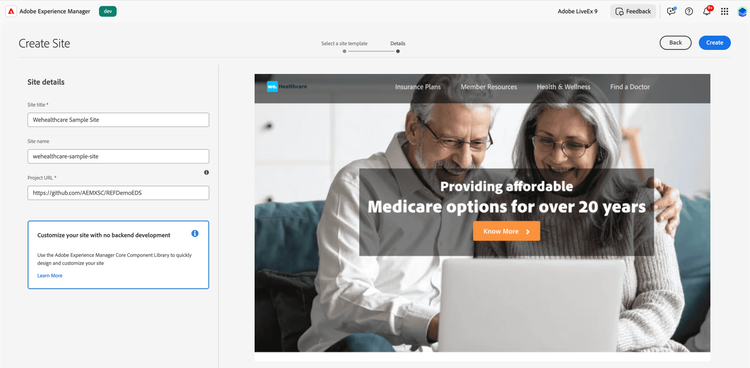
- On next screen, enter details as below:
- Site Title: Your Brand Title e.g. WeHealthcare Sample Site
- Site Name: Use the same name exactly as you specified in the paths.json file in file in the previous step in the Git setup. e.g. wehealthcare-sample-site
- Project URL: This is your own GitHub URL that you created
We are good to go now:
- You will notice a corresponding folder in your AEM Assets for your brand.
- You’ve a base site with WeHealthcare Brand and can start making content changes.
- You can create as many sites as required with the above steps in your AEM environment using the same template.
- For updating logo, header and footer: Edit respective pages in site hierarchy named “Header” & “Footer”
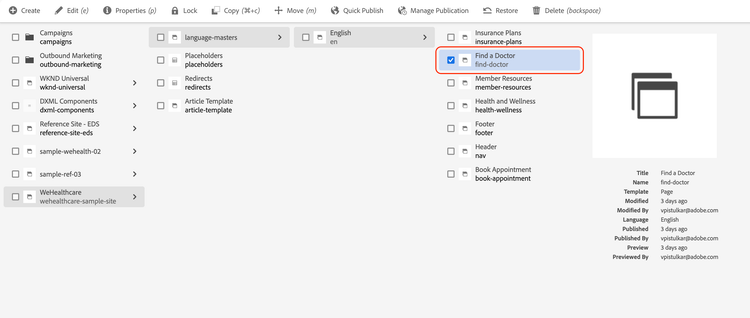
- Select Find a Doctor page and click on Edit icon.
Industry Specific Blocks
- FIND A DOCTOR BLOCK
- Once you click on Edit icon, page will open in a new tab for you.
- Navigate to the content hierarchy and select the Find a Doctor block.
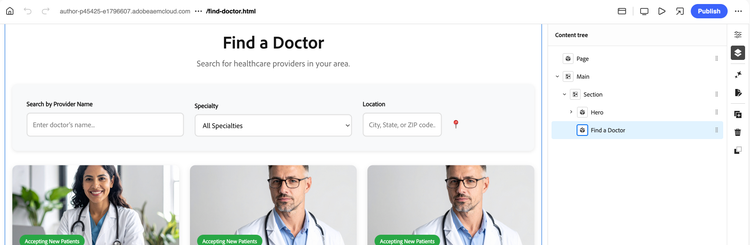
- Once you click on the properties icon, it will reflect a complete set of fields which you could author as per your need. Please find the description regarding the field appearing in Find a Doctor Block.
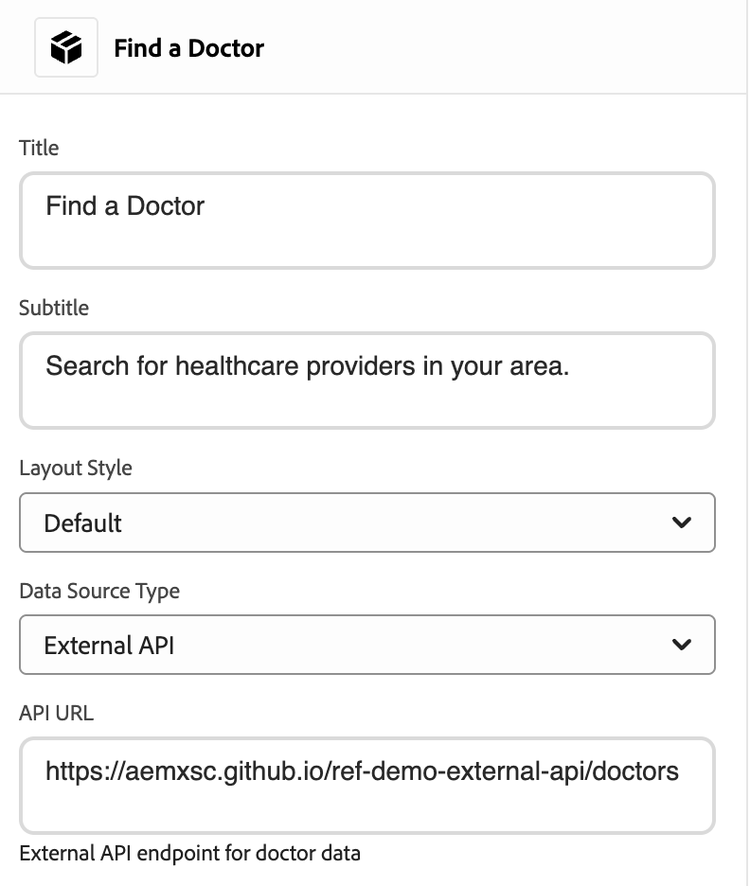
- Title: It defines the title of the block.
- Subtitle: It defines the sub-title of the block.
- Layout:
- Default: 3 card blocks will appear in a row in desktop mode.
- Compact: 3 card blocks will appear in a row in desktop mode but with a compact view.
- Expended: Only 2 card blocks will appear in a row in desktop mode.
- Data Source Type:
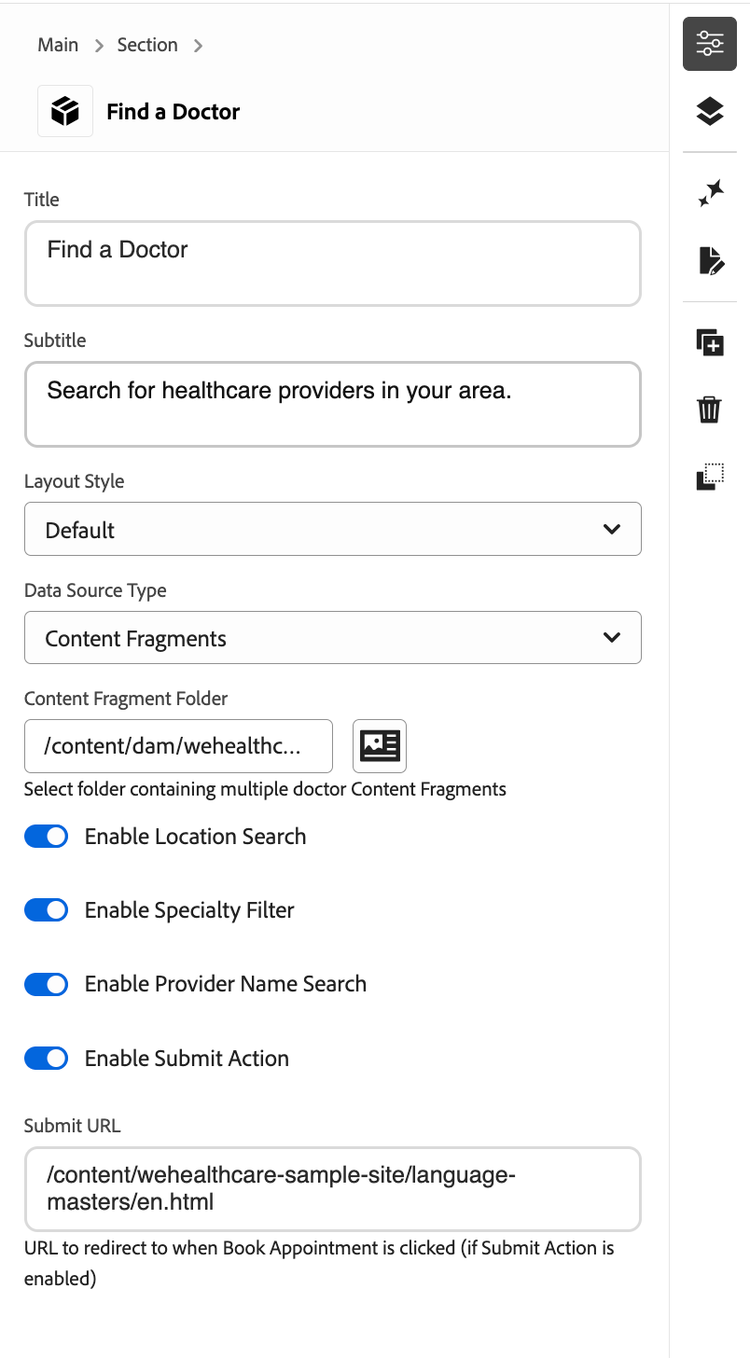
- Content Fragment: It is default selected option. Content Fragment Folder field maps to the location of folder where all the data related to different doctors is stored in form of content fragment.
- External API: We could use an external API which contains all the information regarding the doctor. (e.g. https://aemxsc.github.io/ref-demo-external-api/doctors)
-
- Enable Location Search: By default, this toggle is ON. Switching OFF same will remove Location Search option from the Block.
- Enable Speciality Filter: By default, this toggle is ON. Switching OFF same will remove Specialty Search option from the Block.
- Enable Provider Name Search: By default, this toggle is ON. Switching OFF same will remove Search by Provider Name option from the Block.
- Enable Submit Action:
- Enabled: By default, this toggle is ON, and Submit URL contains the English Page URL for your site. In case Book Appointment button is clicked for any Doctor Detail Card, it will redirect to that page.
- Disabled: In case the toggle is OFF, the Submit URL field will disappear. In case Book Appointment button is clicked, a modal pop-up appears.
Search compatibility
-
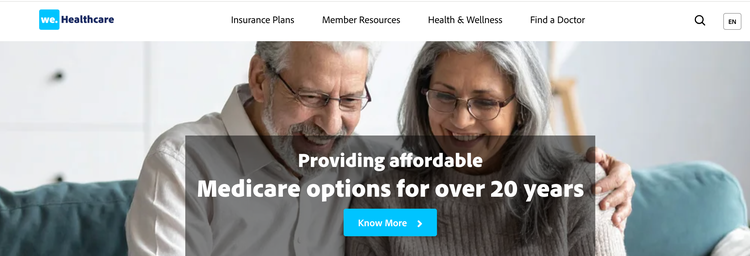
- We have added Search block in the header – You can now check search functionality in weHealthcare site. Integrated into the header component for site-wide access
- The WeHealthcare Search block adds a fast, site-wide search experience to the template. It indexes published pages. To learn more about the Search block, see the Search block
Publishing to Edge
- You can start publishing your content to Edge Network. Make sure all referenced Assets and Config files & Pages are also published.
- For detailed steps, check here.