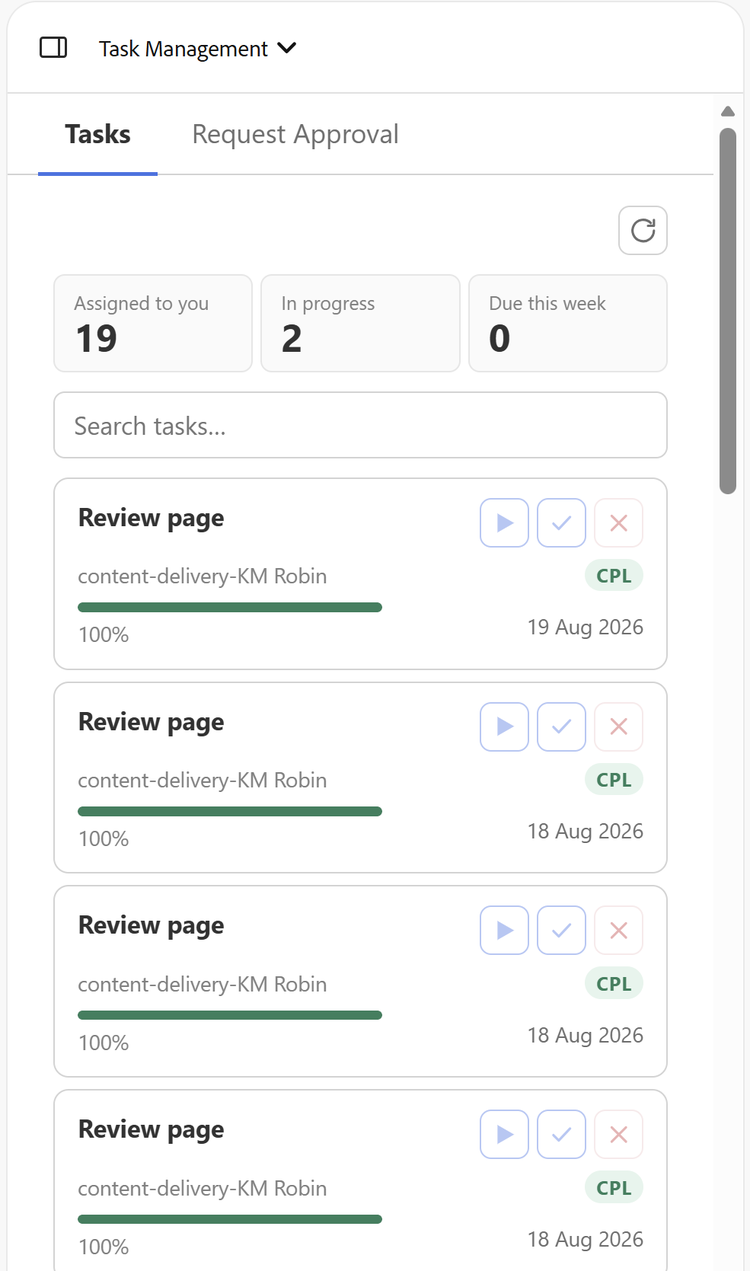
(Workfront) Task Management Extension
Setting up the extension
- Head to the library configuration sheet in your project, refer to the documentation here for setting up a generic custom extension.
- Enter this key and value for pairs for setting up the extension
- Title – Invoke External Service (Recommended)
- Path - https://main--{YOUR_SITE}--{YOUR_ORG}.aem.live/tools/invoke-service.html
Setting up extension registration
- Head to the root of your project
- Create a folder named config
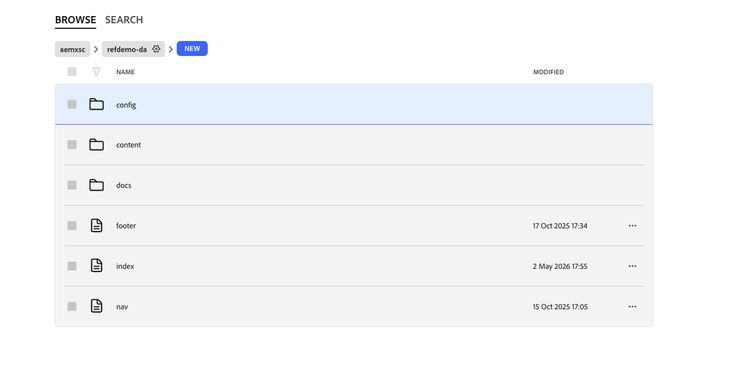
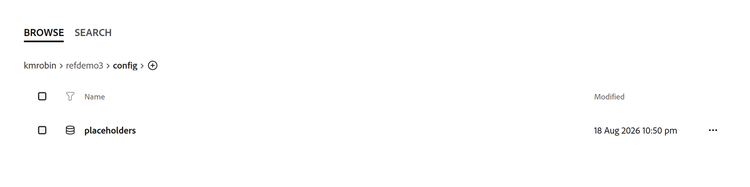
- Create a sheet inside the folder, with the name placeholders
- Create a table inside the sheet, with columns, key and value
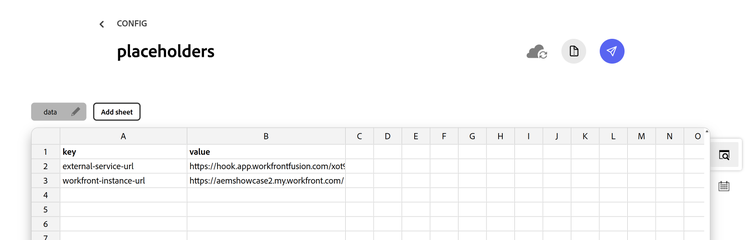
- Add the keys external-service-url and workfront-instance-url
- For external-service-url, we use Workfront Fusion Webhook provided here
- Against workfront-instance-url, enter your Workfront Environment URL
- Once ready with the configuration, make sure to preview and publish the sheet.
NOTE
The default service provided by Reference Demo Fusion Flow, is intended to be a review workflow, which would create a new project based of a template in Adobe Workfront, creates a review task and assign it to you for review and approval.
Usage
- Once the extension is setup in your library, you can access it from any page in your Library both in Editor and Canvas view.
- Make sure to switch to the right organization where you have access to Workfront using the photo icon in top-right corner.
- Then go to Library or Top-Right Pane → Task Management
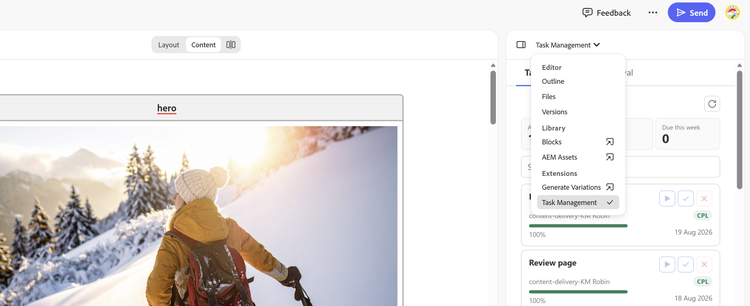
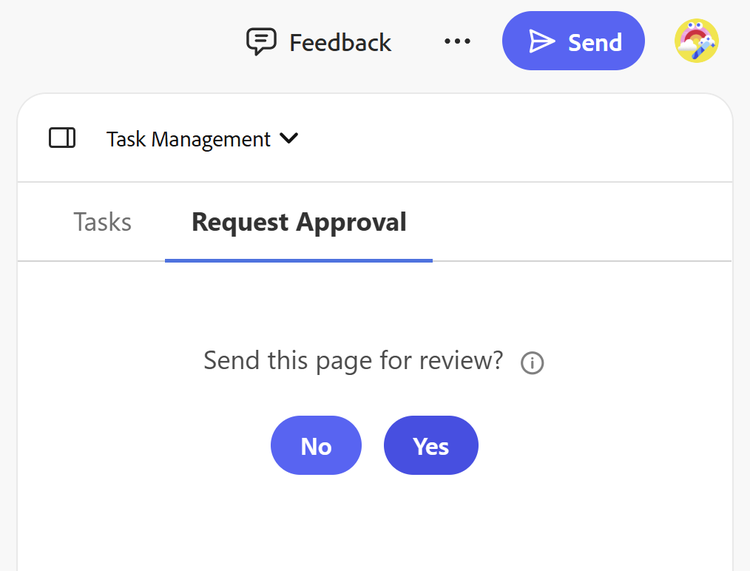
- Inside tsk Management, you can use request Approval to send the current page for review which does all the processing:
- Also, you can see all your tasks in a separate tab and take actions to start/reject/complete tasks assigned to you. (All tasks assigned to you in Workfront.)