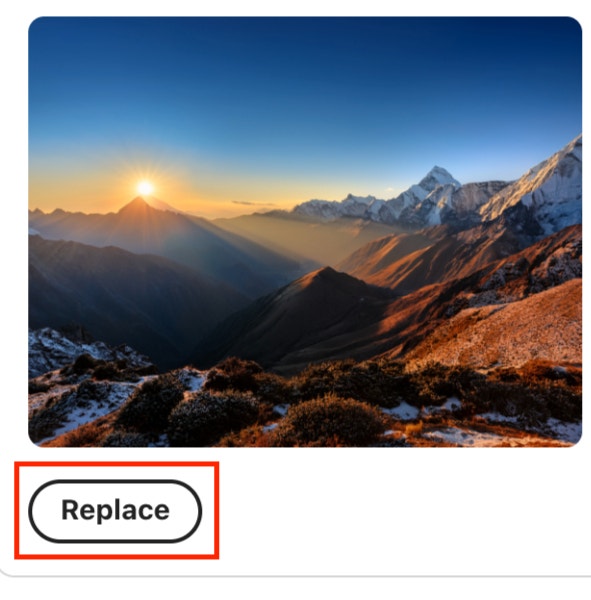
This extension enables authors to leverage the custom Firefly Image Generation Extension within the AEM Universal Editor for generating AI-based images using text prompts.
Authors can generate multiple images in desired size and directly replace an existing image on the page with a single click — all this without leaving the authoring interface.
Extension Overview
Functionality
The Firefly Image Extension provides the following key capabilities:
- Generate Images Using AI: Authors can input a descriptive text prompt to generate multiple AI-generated images using Adobe Firefly.
- In-Context Image Replacement: Generated images can be directly applied to any selected image block on the page.
- Automatic DAM Write Back: Once an image is selected and replaced, it is automatically written back to the AEM DAM at the relative path.
- Seamless Authoring Experience: Authors can use the utility directly from within the page authoring UI — no need to navigate away from page authoring to generate/upload assets.
Extension Availability
- Available only within the Universal Editor interface.
- Visible only when authoring pages.
- Available only for Adobe Internal Employees.
Follow the Instructions below to quickly enable this extension in your AEM instance.
1. Navigate to your Experience Cloud.
2. Switch to the correct org. and Click on Experience Manager.
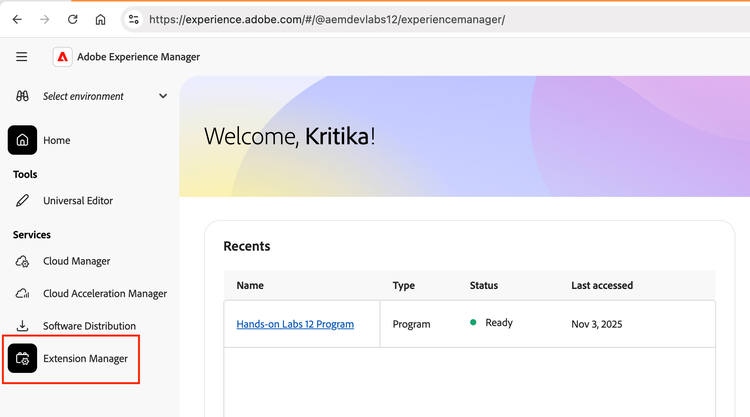
3. From the left side menu, click on Extension Manager.
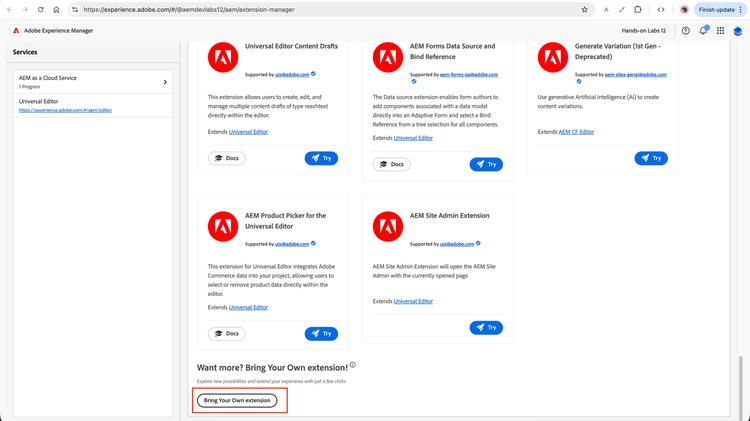
4. In the extension manager screen, scroll to the bottom of the page and click on “Bring Your Own Extension” button. This option is available to onboard any extension that you want to use in your AEM.
5. This should open a modal to provide extension details. In the BYE configuration, provide the following values:
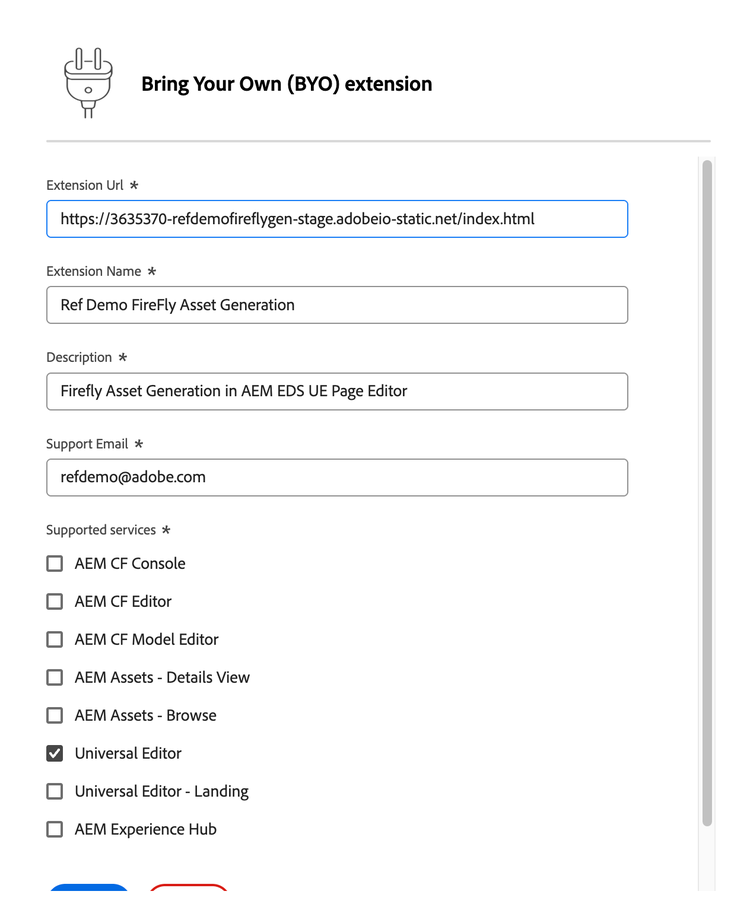
6. Click Save
7. Enable the extension by navigating into the correct environment.

8. Congrats! You have successfully installed and enabled the extension.
Validate Extension
After you have installed and enabled the configuration:
- Open any sites page in Universal Editor
- Verify that the Generate Images Icon appears on the right rail.
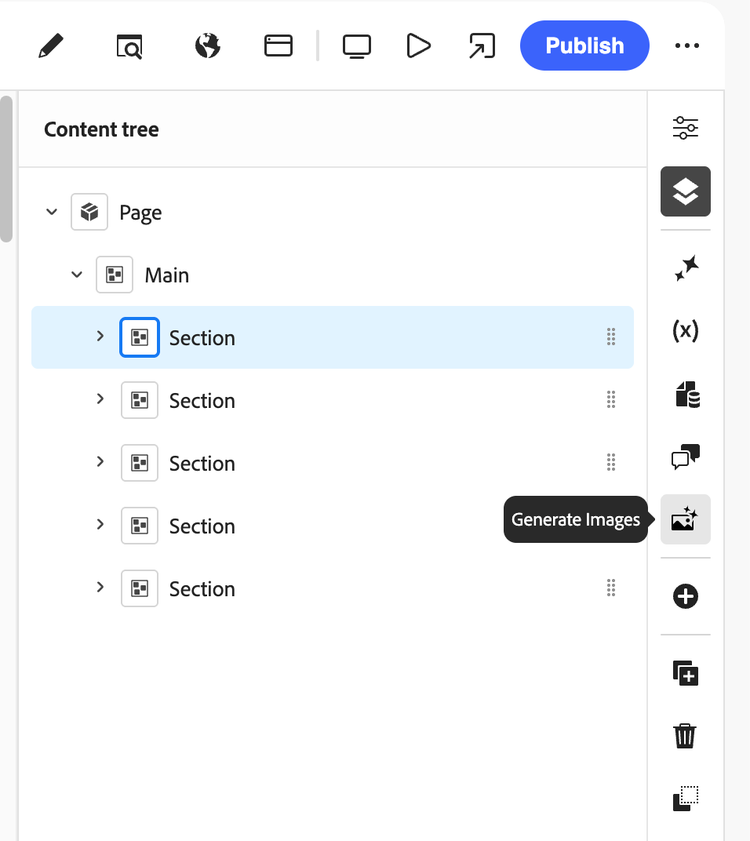
- Clicking the button should display an interface to put in your prompt and select the right dimension.
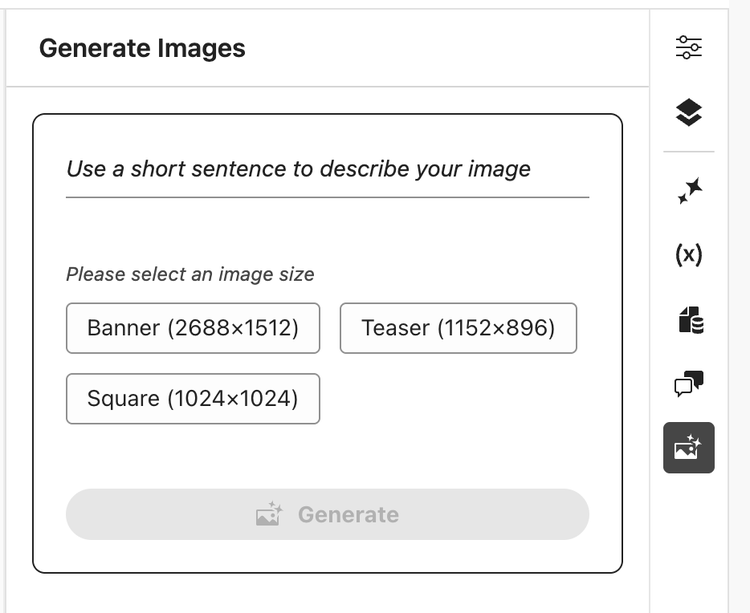
- Provide a prompt to generate an image and select the dimension.
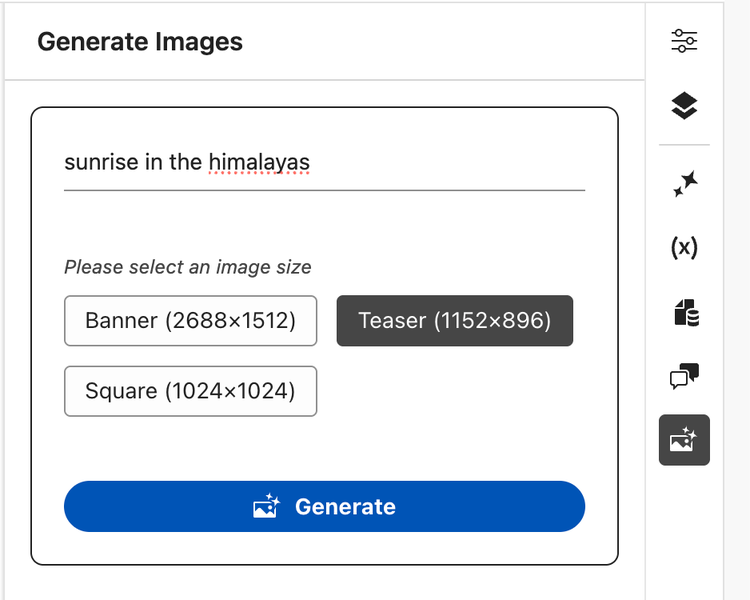
- Click the Generate Images button and wait a couple of seconds.
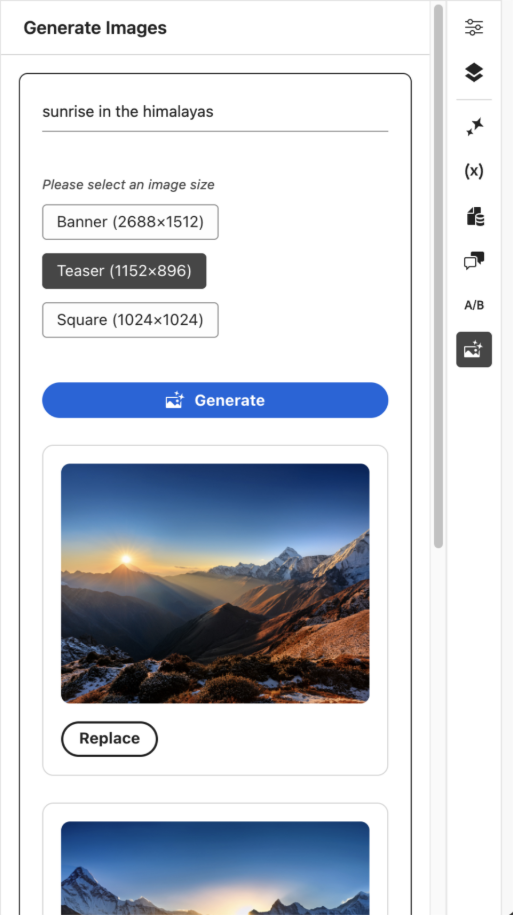
6. You will be given three images to choose from to replace the selected image on the page.
7. Once decided, click on the Replace button and the image will be uploaded in the DAM and will be replaced on the page as well.