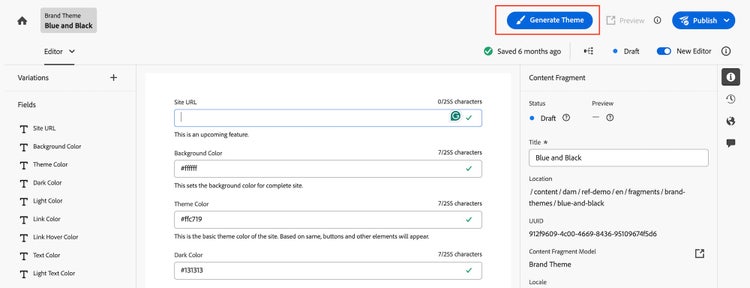
This extension enables authors to fetch brand color values directly from a live site URL and automatically store them within a Brand Theme based Content Fragment. These stored color values can later be referenced in the page property named Brand Theme of any Reference Demo 2.0 based EDS page.
This extension will only be available with content fragments created from Brand Theme content fragment models.
This extension will only be available for Adobe Employees.
Extension Overview
Functionality
The Brand Theme Color Extension provides the following key capabilities:
- Fetch Colors Automatically: Extracts color values (e.g., primary, secondary, link etc.) from the provided live site URL.
- Save Within Content Fragment: Automatically writes the fetched colors to designated fields in the same Brand Theme content fragment. (These values are used as style variables to style the page’s look)
- Enable Reusable Styling Values: By creating content fragments, styling values can be stored once and reused in the page’s as and when needed without the need to make CSS code changes at multiple places.
Extension Availability
- Visible only when authoring content fragments created using Brand Theme content fragment model.
- Available only for Adobe Employees.
Follow the Instructions below to quickly enable this extension in your AEM instance.
1. Navigate to your Experience Cloud.
2. Switch to the correct org. and Click on Experience Manager.
3. From the left side menu, click on Extension Manager.
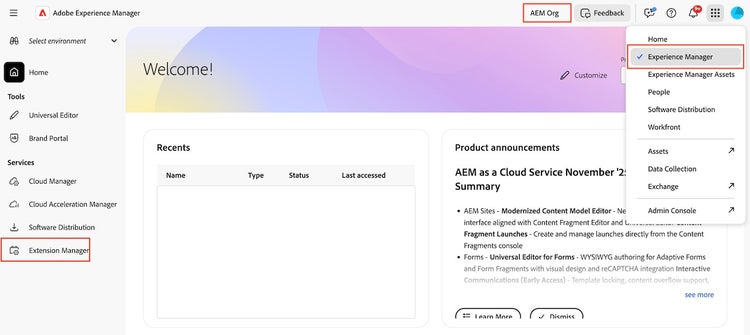
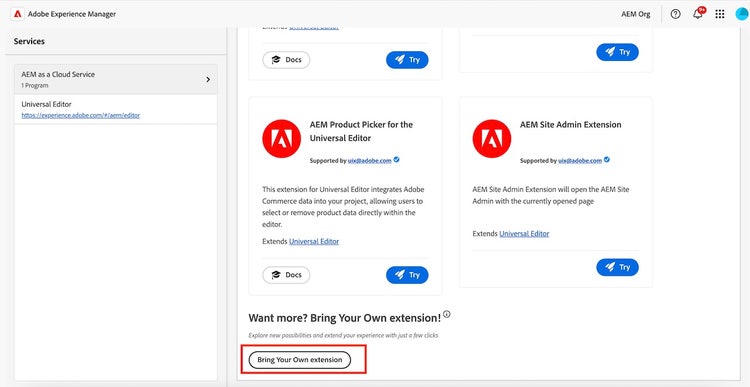
4. In the extension manager screen, scroll to the bottom of the page and click on “Bring Your Own Extension” button. This option is available to onboard any extension that you want to use in your AEM.
5. This should open a modal to provide extension details. In the BYE configuration, provide the following values:
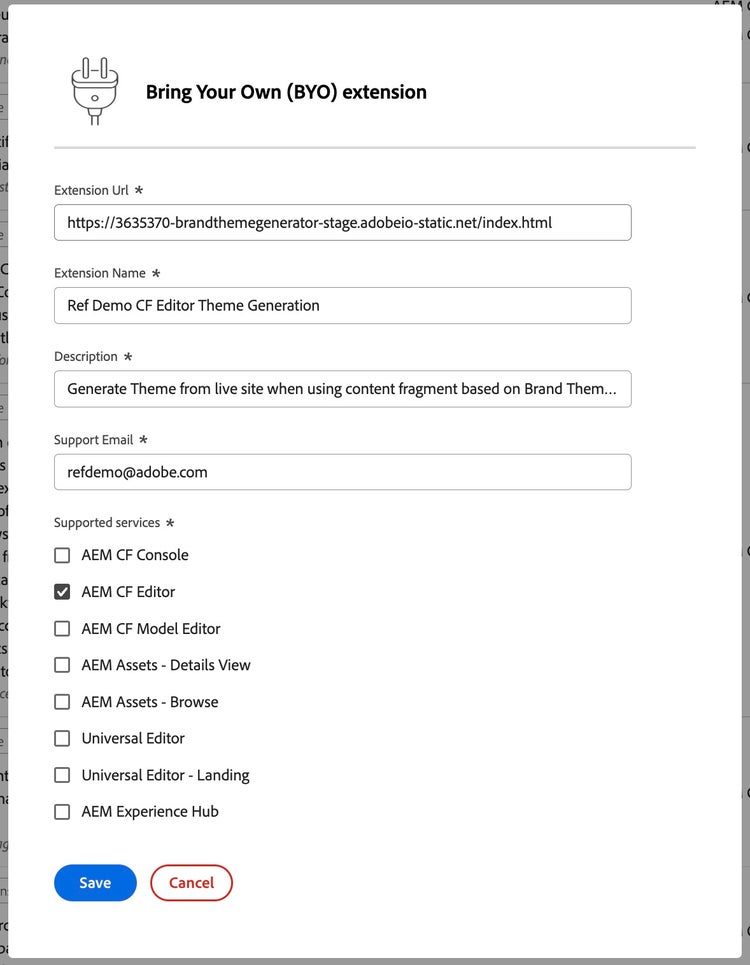
6. Click Save
7. Enable the extension by navigating into the correct environment.
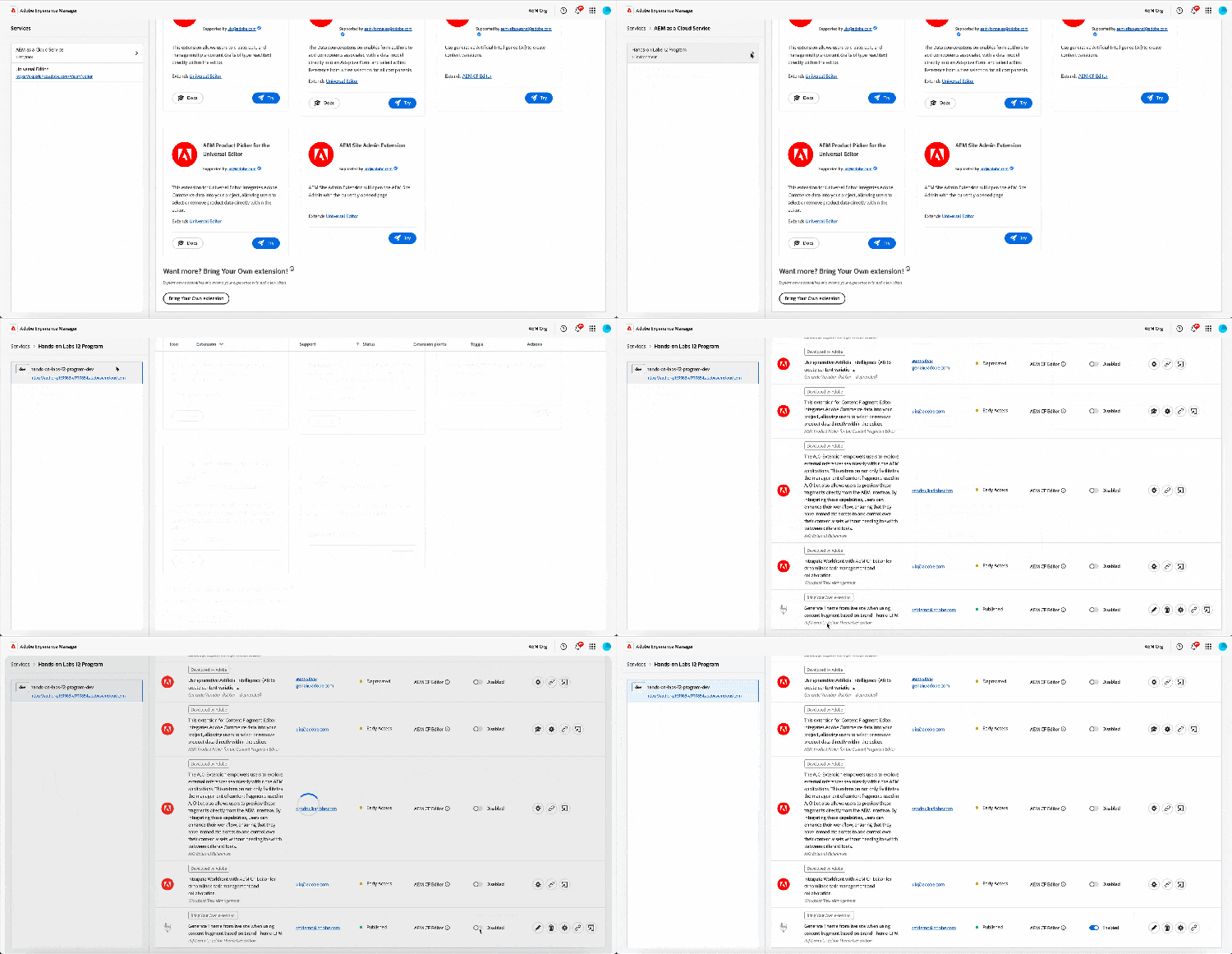
8. Congrats! You have successfully installed and enabled the extension.
Validate Extension
After you have installed and enabled the configuration:
- Open any content fragment built using Brand Theme content fragment model.
- Verify that the Generate Theme Button appears in the header menu.
- Clicking the button should open a modal.
- Provide a public site URL from which you want to extract the color values.
- Clock Fetch Theme to retrieve color values from the provided URL.
- Verify that the color fields in the fragment are auto populated.