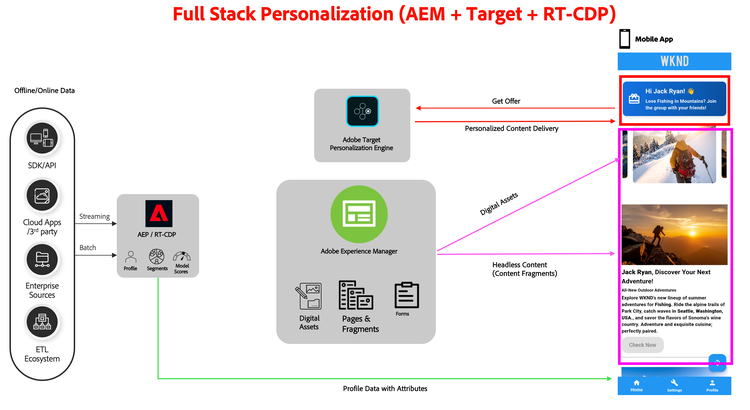
This flow integrates AEP (RT-CDP) profile attributes, AEM headless content, and Adobe Target decisioning, with the Mobile App consuming and rendering the personalized experience.
Objective
AEP (RT‑CDP) owns people & segments, Target does real‑time decisioning, AEM provides the content. This is your “true” headless personalization story.
Setup
Let’s set up the flow in your environment. We need three things:
- Personas – Pre-defined in AEP (RT-CDP)
- Decisioning Engine – Adobe Target
- Offer Content – Adobe Target / AEM*
Persona(s) from AEP
- For simplicity, a shared Env is used for persona definitions and profile attributes: AEP Env Direct Link
- To request access to the shared environment, you may request in the slack channel #reference-demo-2-0 or write to: refdemo@adobe.com
- You need at least view access to:
- Profiles
- Segments
- Schema & dataset viewer (optional)
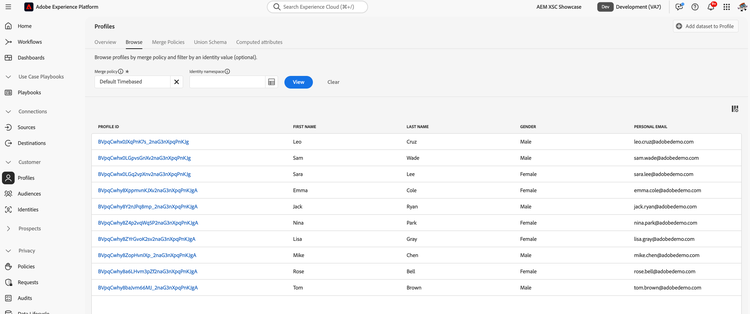
Here’s a quick snapshot of a few demo profiles available in shared RT-CDP env:
- Go to Experience Platform > Profiles
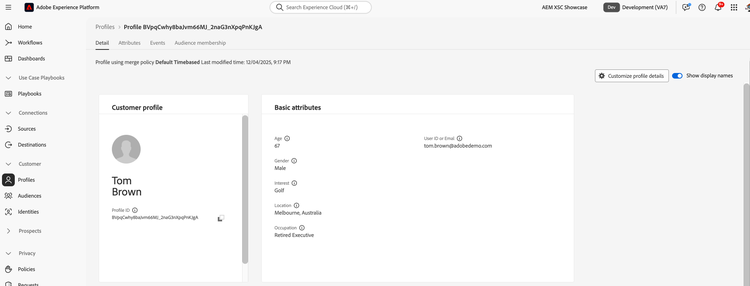
- Open any profile to view the attributes.
Configure Adobe Target (Offer & Decisioning)
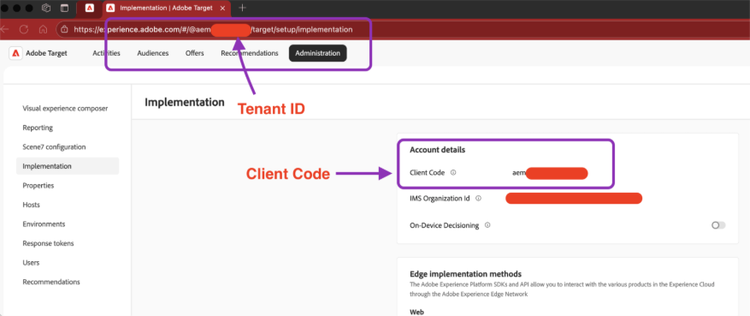
- Go to Adobe Target > Administration > Implementation
- From Adobe Target, you need to note down your “Client Code” and “Tenant ID” which you will enter in AEM configuration fragment later. (These two are generally the same but may be different in some legacy orgs).
- Go back to your AEM Content Fragment list for your brand folder and open the “Mobile Configurations” fragment.
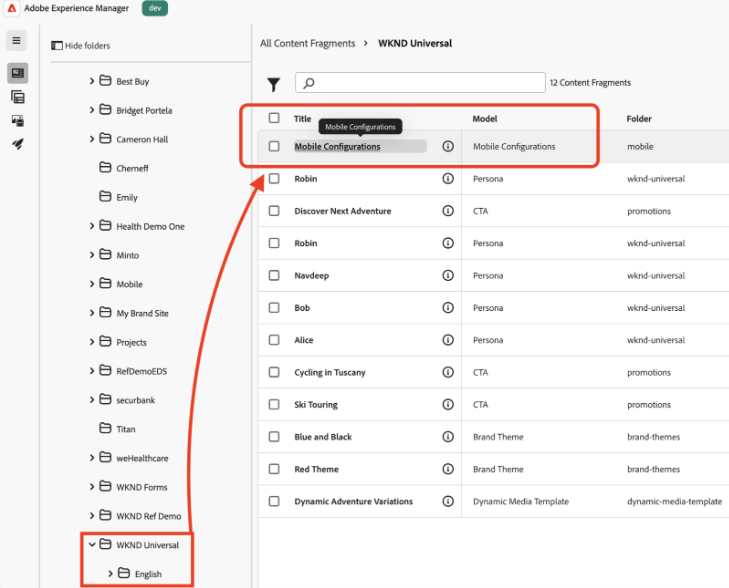
- Enter the Client Code and Tenant ID of your Adobe Target under “Personalization” tab.
- Turn on the switch: “Use Profiles From AEP”
- Make sure to publish the fragment.

- Let's head back to Aobe Target and navigate to Target > Audiences from the top navigation and let’s “Create Audience”.
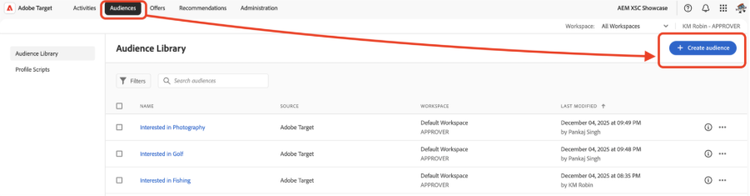
- Inside Audience creation wizard, drag “Custom” from the Attributes pane on the left side to the center.
- Choose a parameter (if not available in dropdown, type your parameter directly). The parameter should be same (case-sensitive) as you had in the Persona fragment earlier in AEM e.g. “interest”, etc.
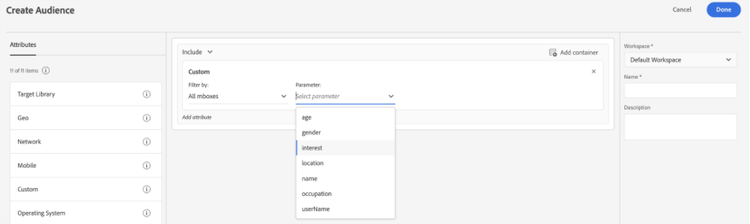
- Choose evaluator e.g. “Equals” and enter the value as per the Persona you created earlier in AEM (e.g. Golf or Cycling).
- Give it a name and click “Done”.

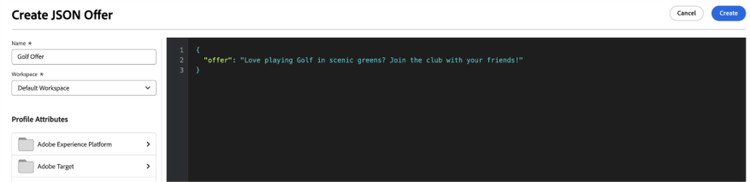
- Now, let’s define an Offer in Target. From top navigation in Adobe Target > Offers > Create Offer > JSON Offer
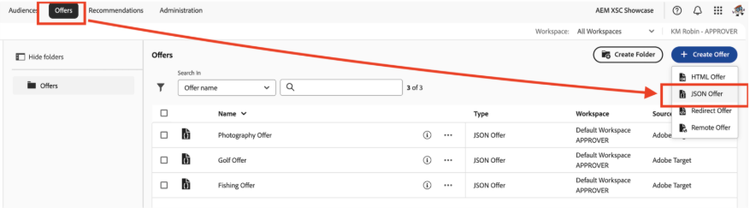
- Give your offer a name and in json window enter an “offer” message you want to show for personas who qualify your audience criteria and click “Create”.
{
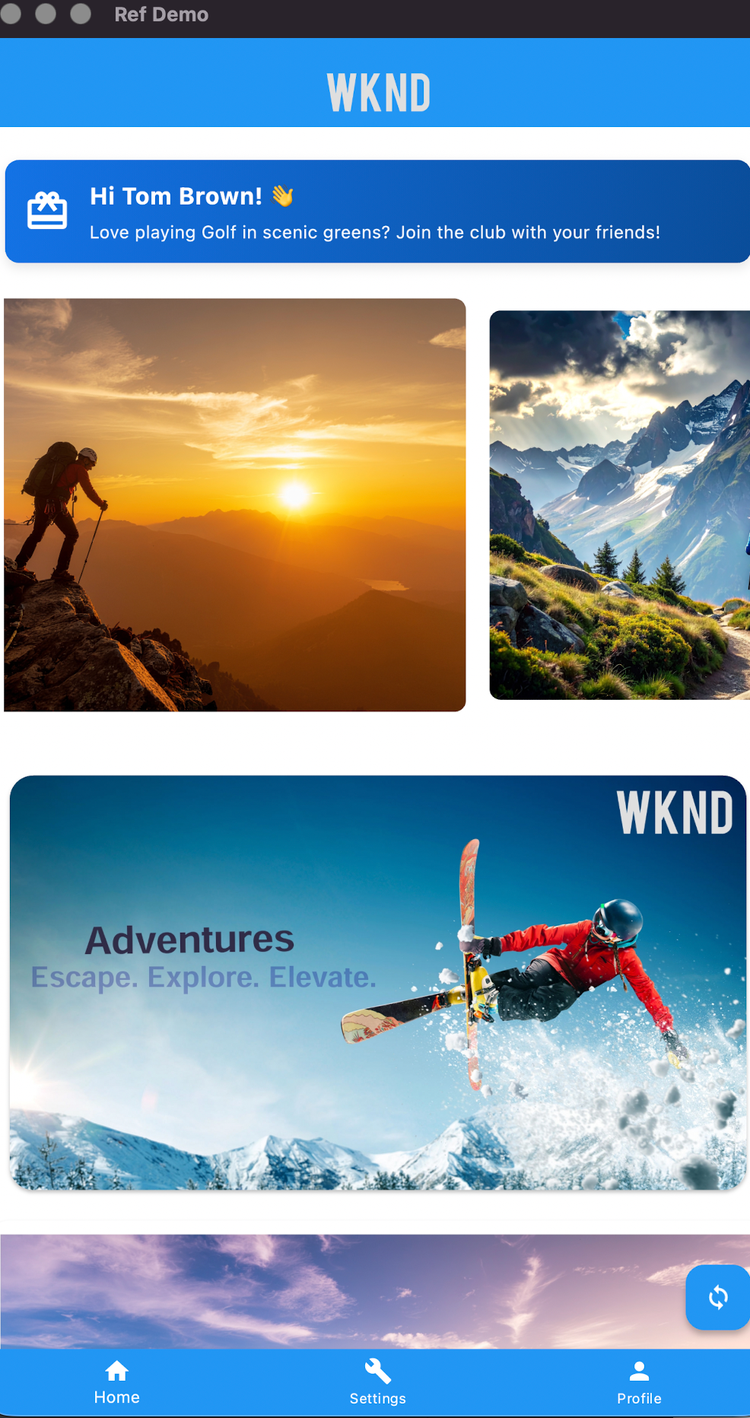
  "offer": "Love playing Golf in scenic greens? Join the club with your friends!"
}
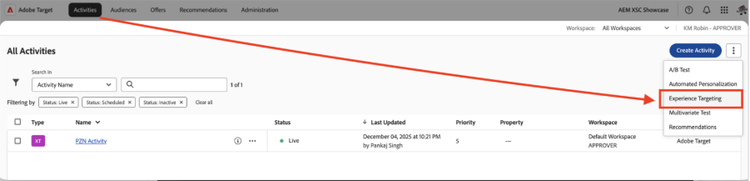
- Finally, let’s create the activity to map the Audience & Offer. From top navigation in Adobe Target > Activities> Create Activity> Experience Targeting
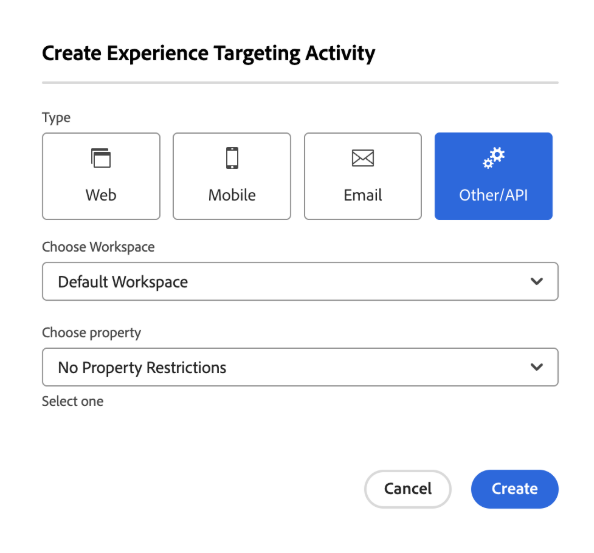
- In the popup, choose option Other/API > Create
- In the Activity creation window:
- First click “+” button next to Audiences in top-left corner > Choose an audience you created earlier.
- Now from the bottom-right, click three dots and choose “Change JSON Offer” and select the offer you defined earlier.
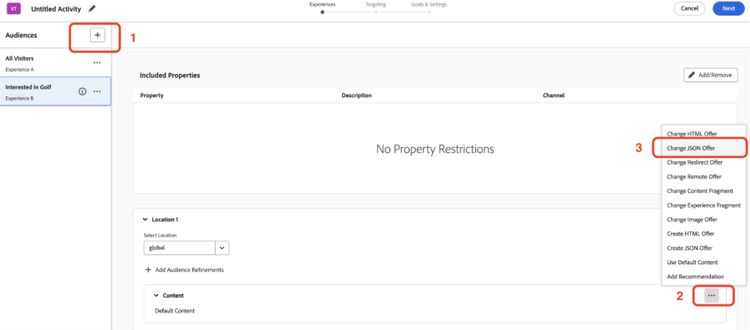
- Similarly, you can add more audience and offers which you can map in the same activity to target different personas with different offers.
- Once ready, click Next > again Next and Save & Close your Activity. (Choose any Goal metric for now or as per your storyline)
- Make sure to “Activate” your activity from the final screen after saving.

Personalized Content in Mobile App
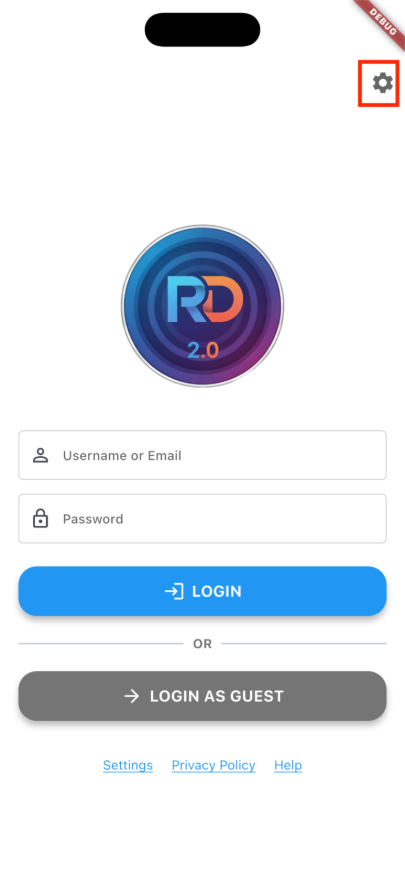
- In the Mobile app > Login screen: Click on the top-right corner (gear-icon) to go to the settings.
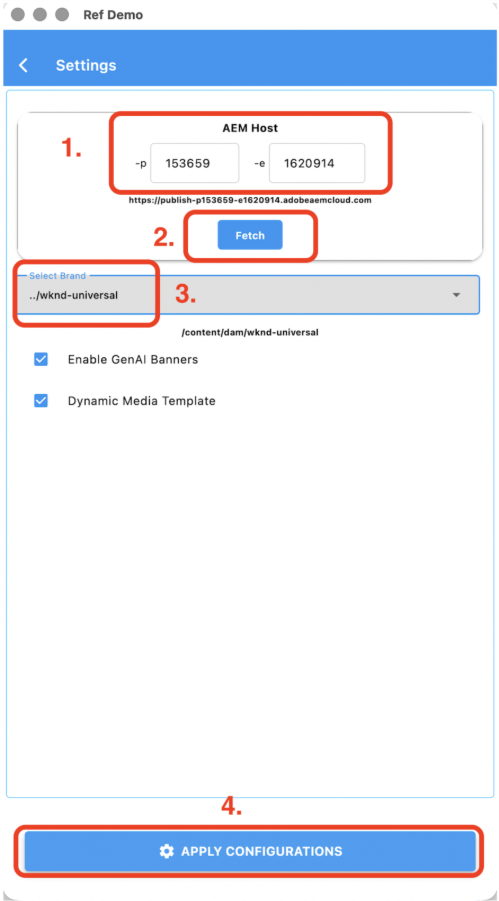
- Enter your AEM environment details > Click “Fetch” > Select your brand > Click Apply Configurations.
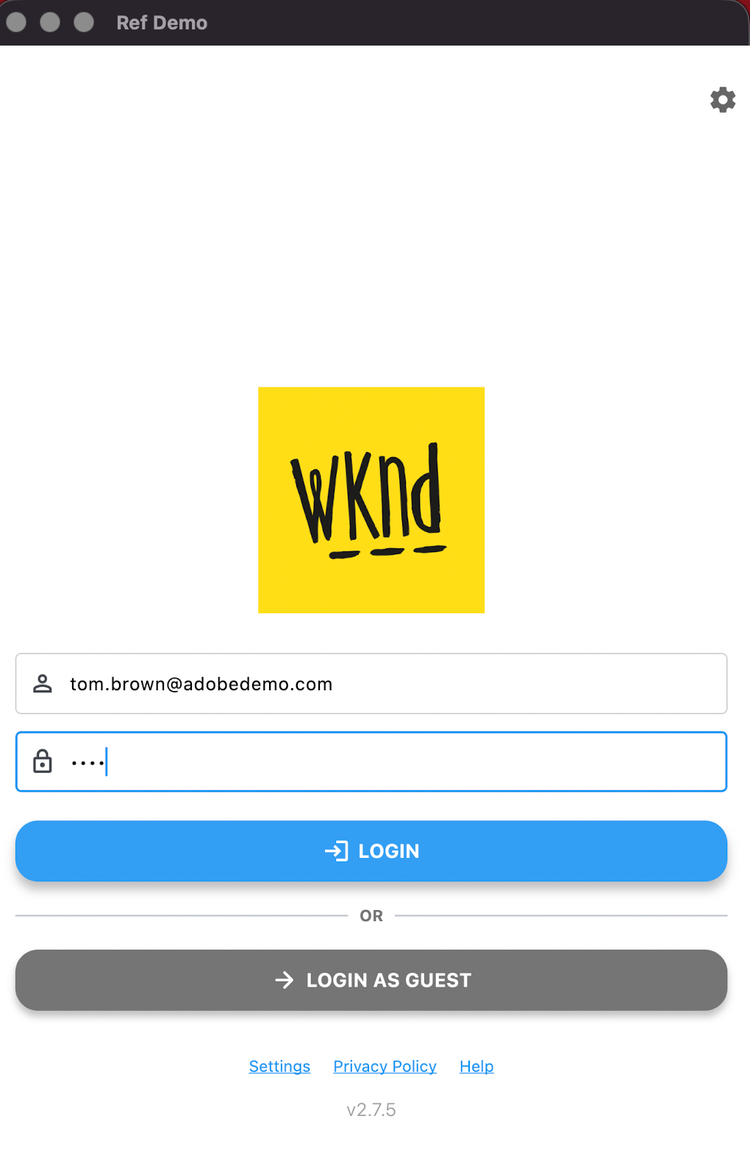
- Now, let’s login using an email from the profiles available in RT-CDP
- Enter a password (it’s optional, enter anything, no validations for simplicity)
- After you login, notice the offer for the persona.
- Optionally, you can click on the profile icon, in the bottom right corner, to view the logged in user’s profile.
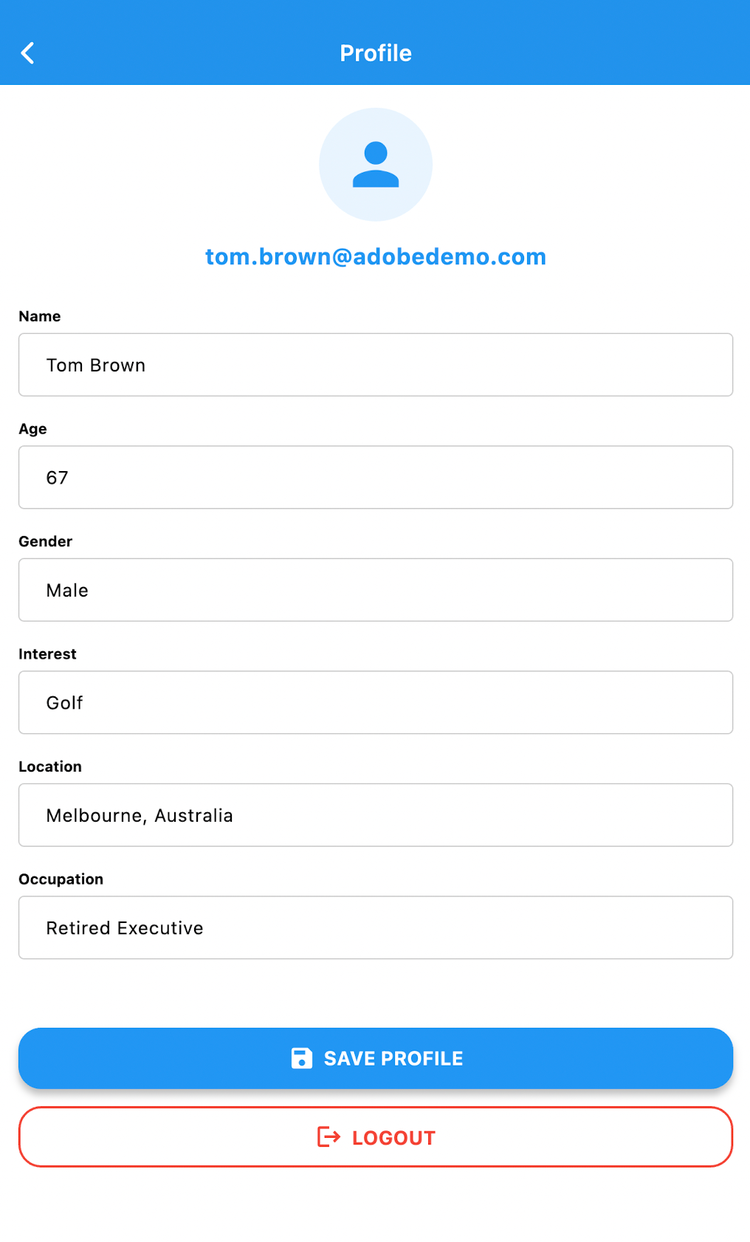
- You can make changes to your profile, which will be saved locally for your profile.
- Click on the Save Profile button to save the profile with changes, you will find your fragment updated with the updated profile.