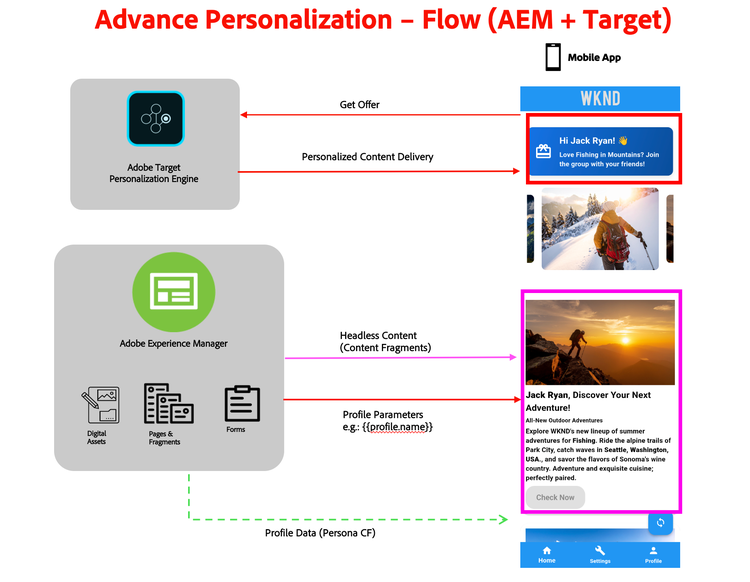
In this flow, we will cover how to deliver Personalized Offers through AEM & Adobe Target.
Objective
Show a lighter‑weight path to headless personalization powered by AEM + Target, without AEP/RT-CDP.
You’re essentially using personas from AEM Content Fragments for the simplicity and letting Adobe Target do the decisioning.
Behind the scenes
- AEM
- Content Fragment model: Persona with fields:
- user id, name, age, interest, occupation, gender, location
- You can also add other attributes you want
- Author persona CFs:
- Persona 1: Cycling Enthusiast
- Persona 2: Frequent Flyer
- Content Fragment model: Persona with fields:
- Mobile App
- Simple login/selector that passes the persona’s profile attributes like interest, gender, etc. as a Target mbox parameter
- Adobe Target
- Audiences defined on interest == 'cycling', etc.
- Offers: same pattern as above— Create in Target as JSON offer
- XT activity mapping audiences to offers.
Setup
Let’s set up the flow in your own environment. We need three things:
- Personas – The audience
- Decisioning Engine – Adobe Target
- Offer Content – Adobe Target / AEM*
Create Persona(s) in AEM
You need to create a persona fragment in AEM which will be consumed by the Mobile App, during the login process.
- Go to AEM Start Screen > Content Fragments
- Select your Brand Folder, e.g. “WKND Universal” where you want to create the Persona Fragment
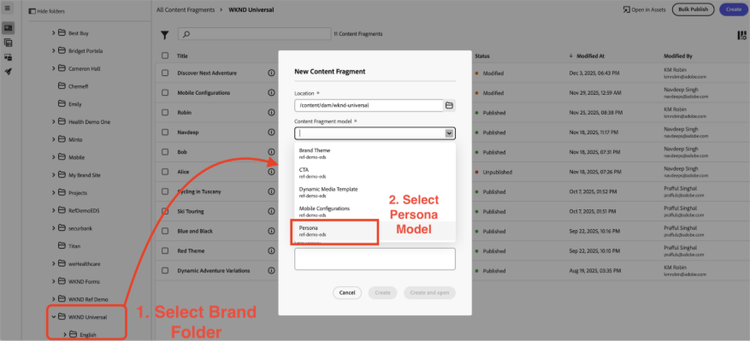
- Click on “Create” > “Content Fragment” button to create a new Content Fragment
- Fill in the details suitably, select the Content Fragment Model as “Persona”
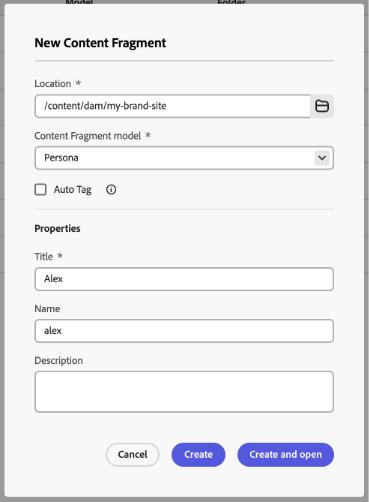
- Fill in the details for your persona
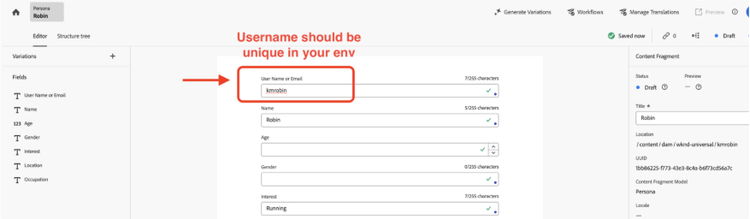
- Publish the persona once ready with the details
Customizing fields for Persona (Optional)
Need a custom profile attribute other than what’s available in Persona model by default?
This is an optional step and should be done only if required, kindly read through all the steps first before making any changes
- Go to AEM Start Screen > Tools > General > Content Fragment Models
- Go to the “Ref Demo EDS” config folder
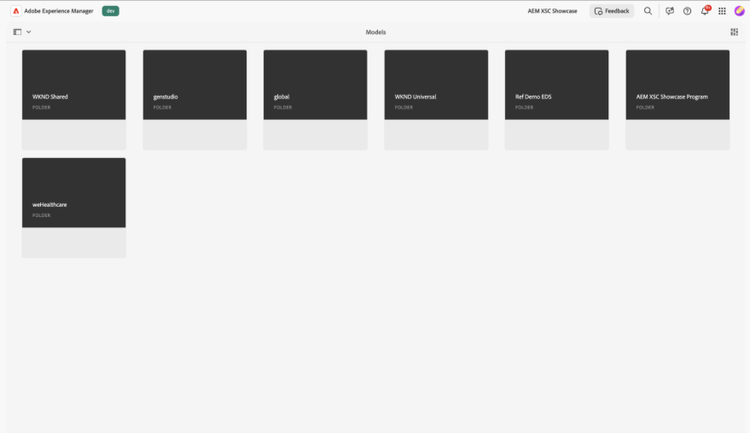
- Click to edit the “Persona” Model
- A Warning Pop-up appear, to continue editing, click on the “Edit” button.
- You can now add/remove/update the fields in your model.
- Once ready with the changes, make sure to publish the model
- Head to the GraphQL query editor and make the appropriate changes and publish the GraphQL query.
- IMPORTANT: With the update of the Content Fragment model all your existing Persona fragments (if you created earlier) would need an update to the publish tier.
Configure Adobe Target (Offer & Decisioning)
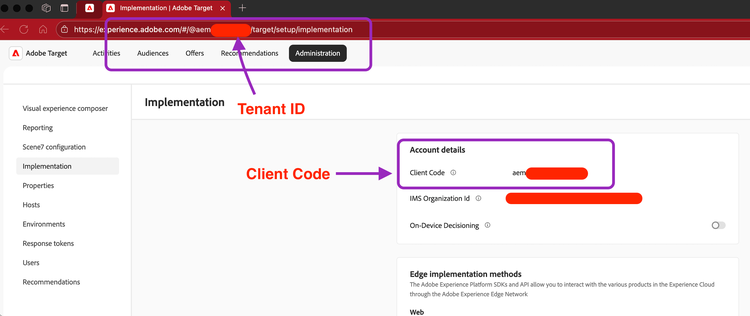
- Go to Adobe Target > Administration > Implementation
- From Adobe Target, you need to note down your “Client Code” and “Tenant ID” which you will enter in AEM configuration fragment later. (These two are generally the same but may be different in some legacy orgs).
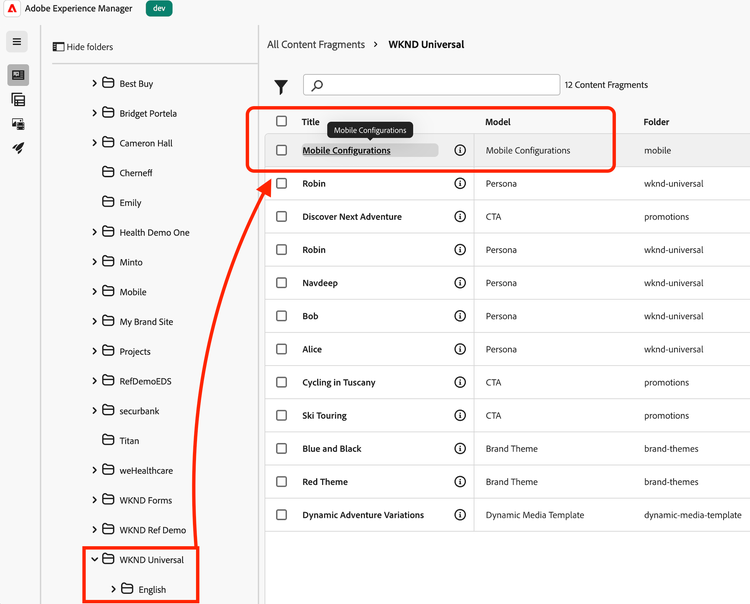
- Go back to your AEM Content Fragment list for your brand folder and open the “Mobile Configurations” fragment.
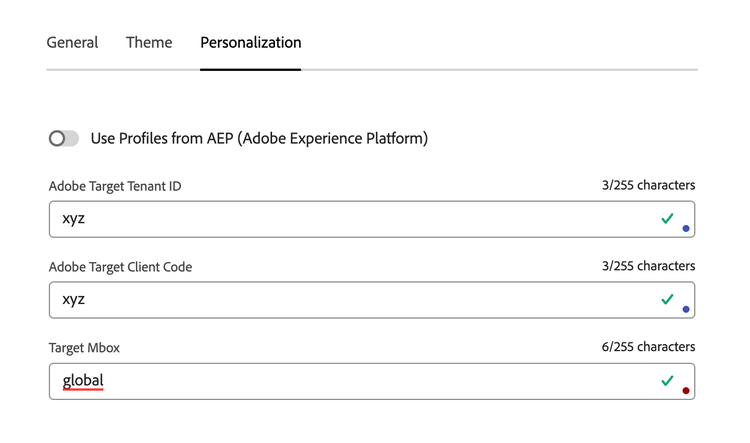
- Enter the Client Code and Tenant ID of your Adobe Target under “Personalization” tab.
- Make sure to publish the fragment.
- Let's head back to Aobe Target and navigate to Target > Audiences from the top navigation and let’s “Create Audience”.
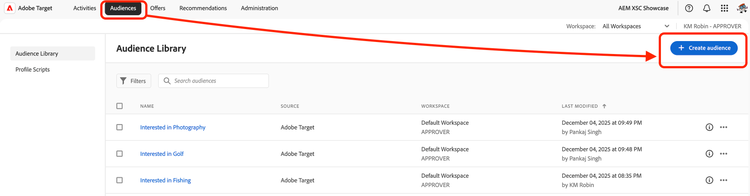
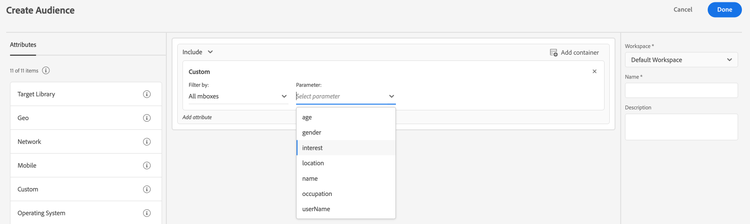
- Inside Audience creation wizard, drag “Custom” from the Attributes pane on the left side to the center.
- Choose a parameter (if not available in dropdown, type your parameter directly). The parameter should be same (case-sensitive) as you had in the Persona fragment earlier in AEM e.g. “interest”, etc.
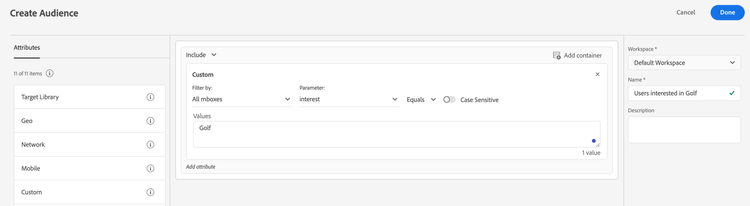
- Choose evaluator e.g. “Equals” and enter the value as per the Persona you created earlier in AEM (e.g. Golf or Cycling).
- Give it a name and click “Done”.
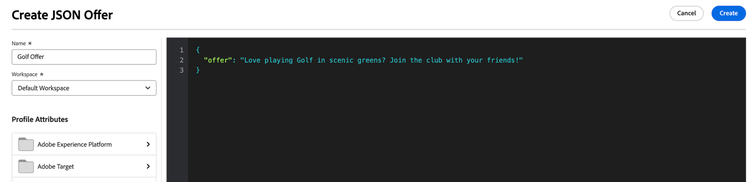
- Now, let’s define an Offer in Target. From top navigation in Adobe Target > Offers > Create Offer > JSON Offer
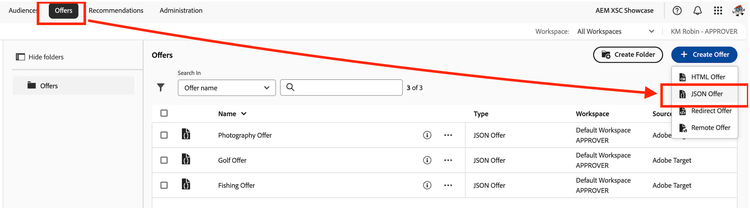
- Give your offer a name and in json window enter an “offer” message you want to show for personas who qualify your audience criteria and click “Create”.
{
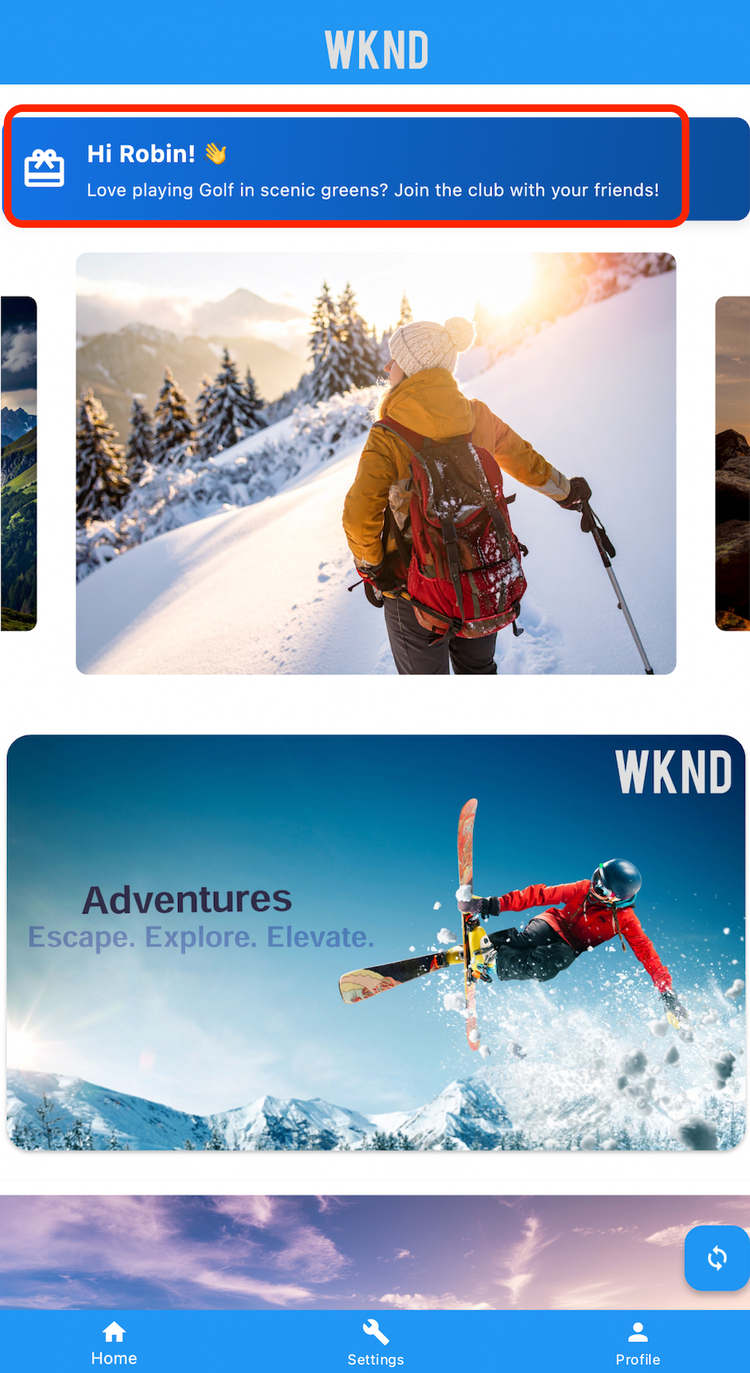
  "offer": "Love playing Golf in scenic greens? Join the club with your friends!"
}
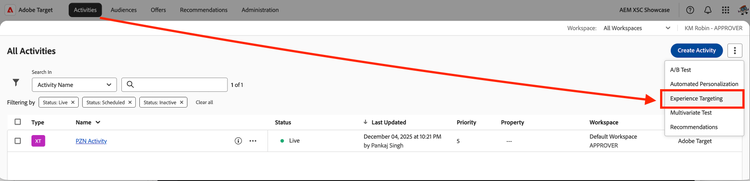
- Finally, let’s create the activity to map the Audience & Offer. From top navigation in Adobe Target > Activities> Create Activity> Experience Targeting
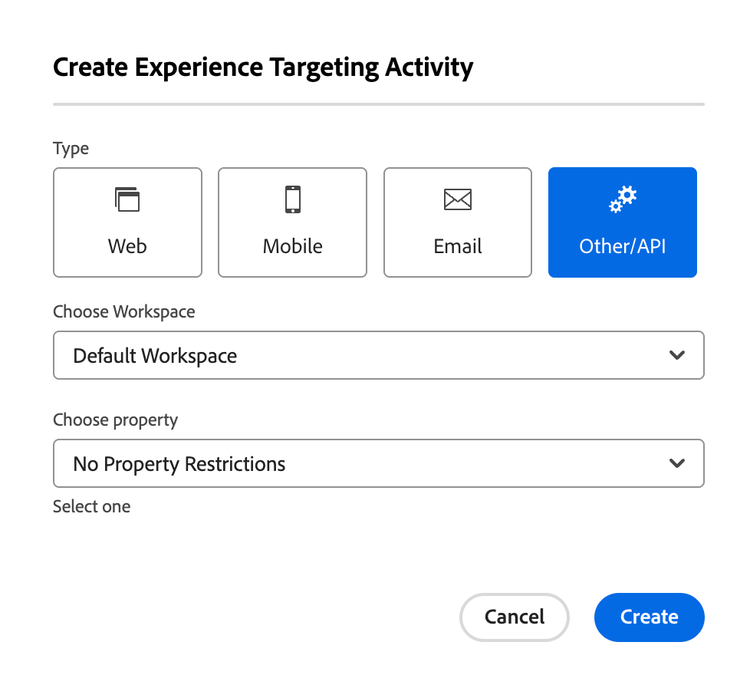
- In the popup, choose option Other/API > Create
- In the Activity creation window:
- First click “+” button next to Audiences in top-left corner > Choose an audience you created earlier.
- Now from the bottom-right, click three dots and choose “Change JSON Offer” and select the offer you defined earlier.
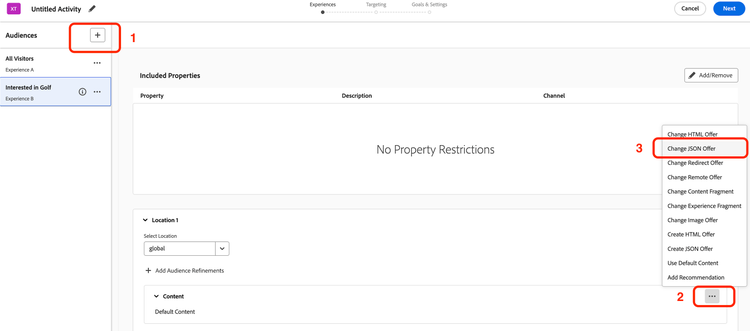
- Similarly, you can add more audience and offers which you can map in the same activity to target different personas with different offers.
- Once ready, click Next > again Next and Save & Close your Activity. (Choose any Goal metric for now or as per your storyline)
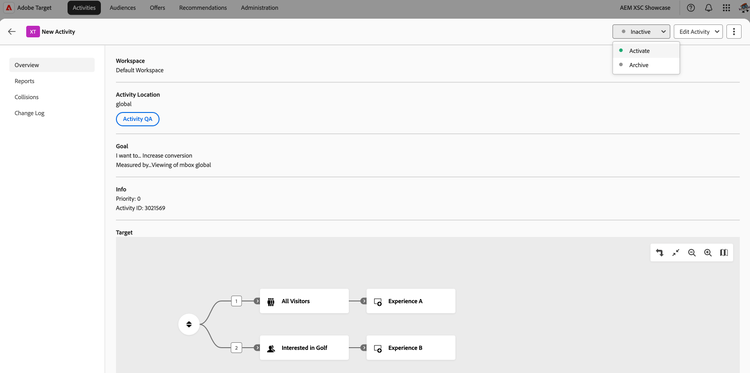
- Make sure to “Activate” your activity from the final screen after saving.
Personalized Content in Mobile App
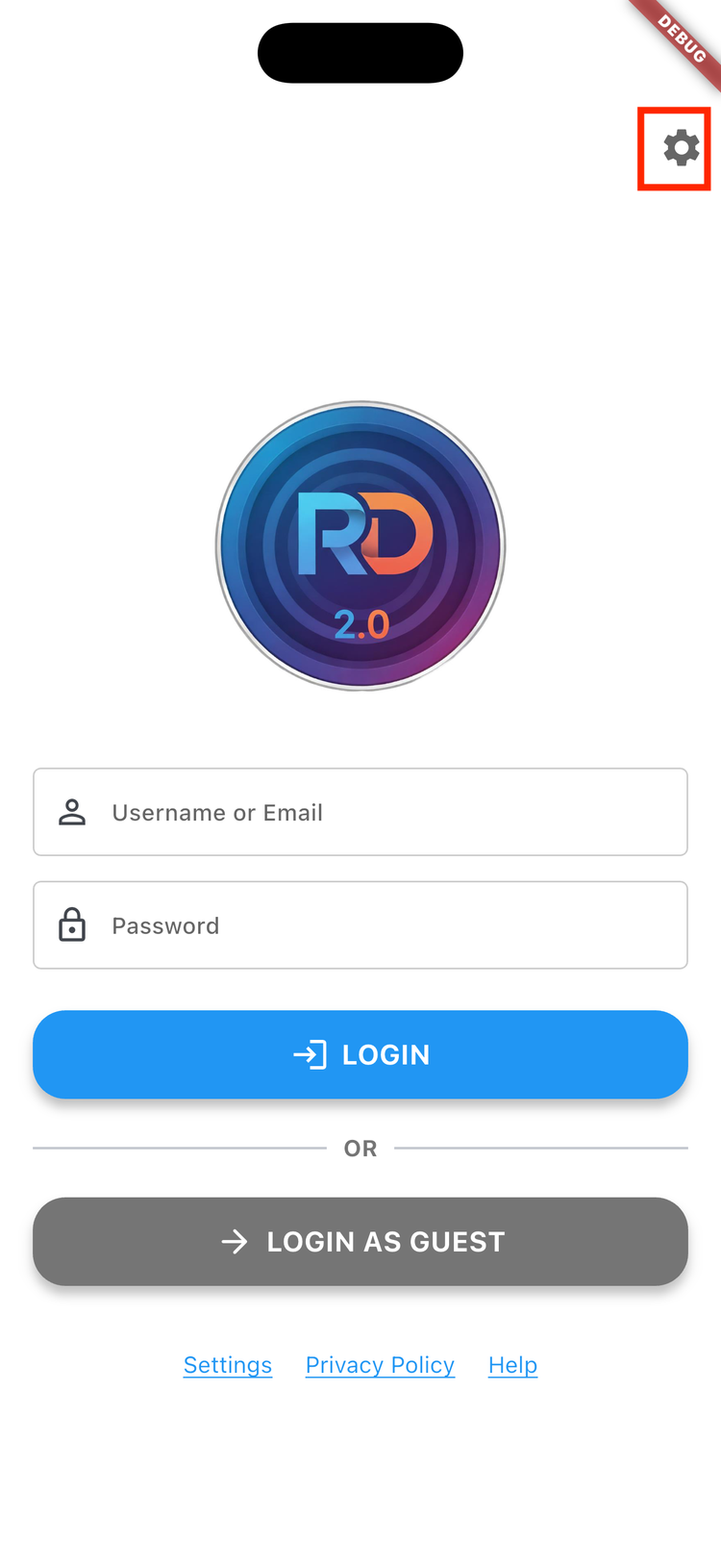
- In the Mobile app > Login screen: Click on the top-right corner (gear-icon) to go to the settings.
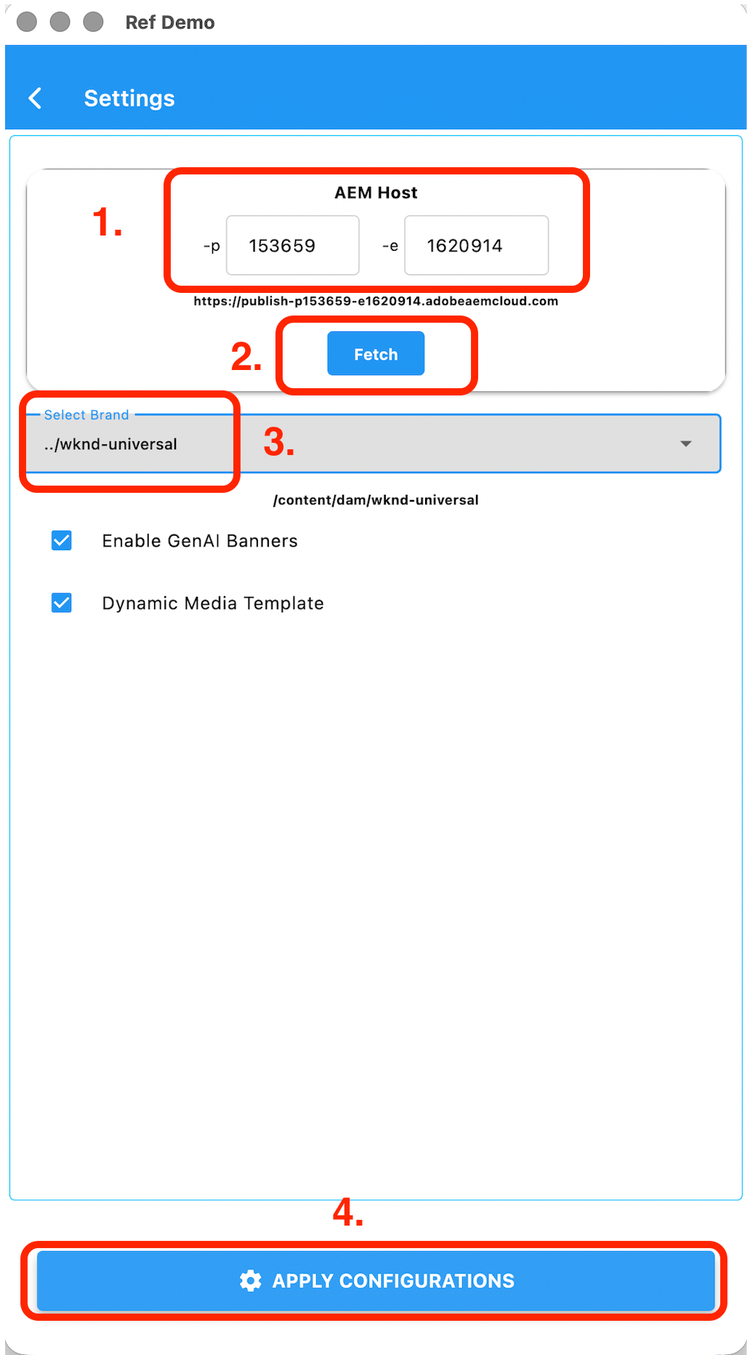
- Enter your AEM environment details > Click “Fetch” > Select your brand > Click Apply Configurations.
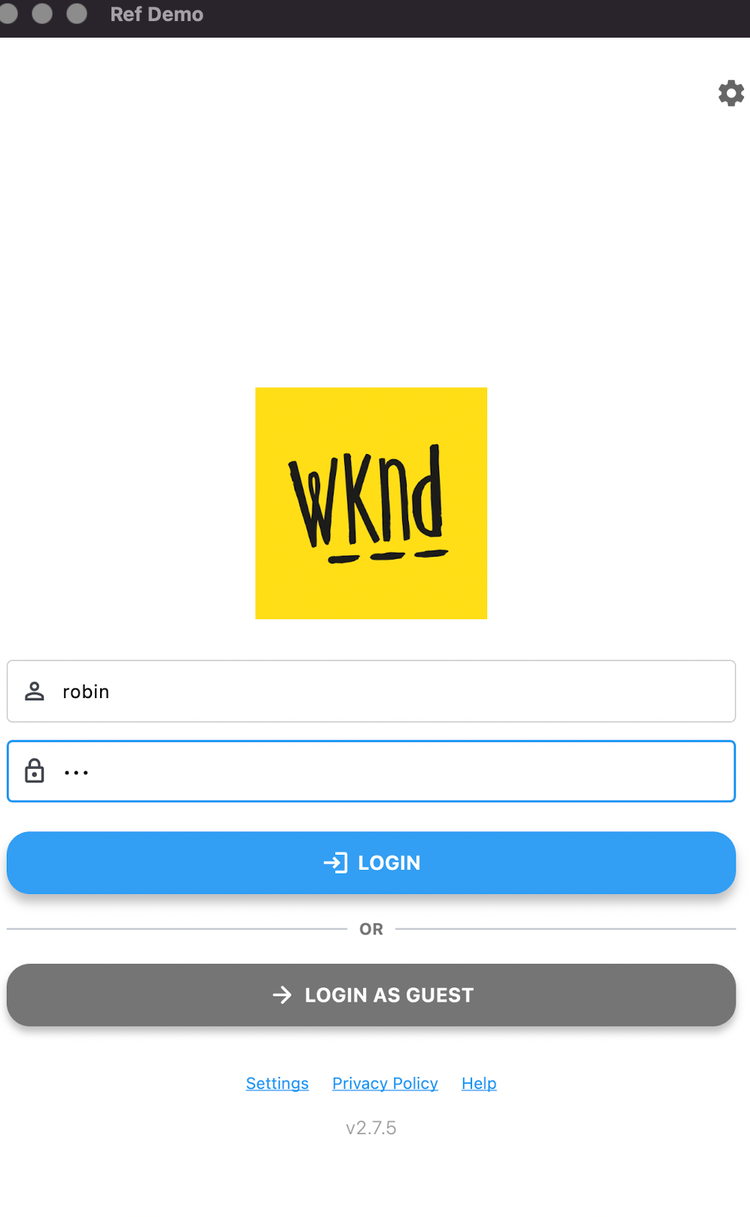
- Now, Login with your username or email, created in the “Persona”
- Enter a password (it’s optional, enter anything, no validations for simplicity)
- After you login, notice the offer for the persona.
- Optionally, you can click on the profile icon, in the bottom right corner, to view the logged in user’s profile.
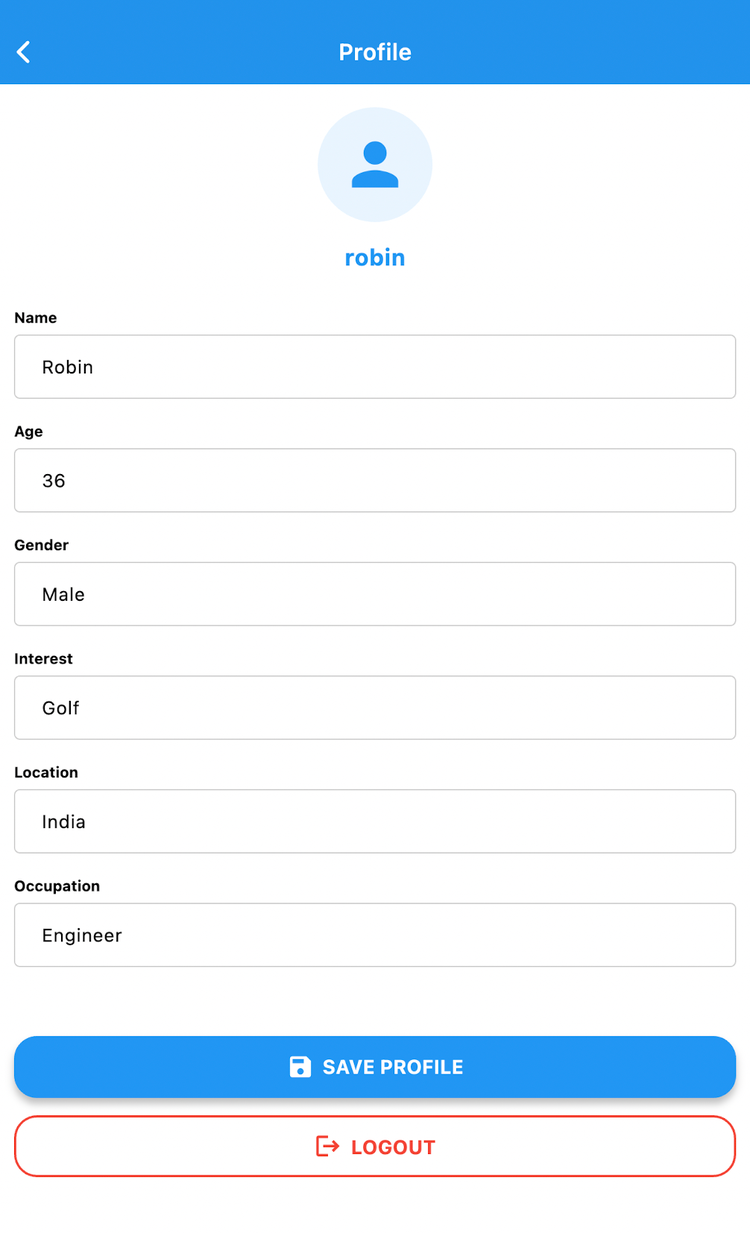
- You can make changes to your profile, which will be saved locally for your profile.
- Click on the Save Profile button to save the profile with changes, you will find your fragment updated with the updated profile.