Personalization with AEP
In this module we will be consuming a profile from AEP and personalizing the content to be consumed in the Mobile App
Configuration for your Brand
You need to have an existing brand on which you can apply personalization, as a pre-requisite you need to have a brand setup which you can use for personalization.
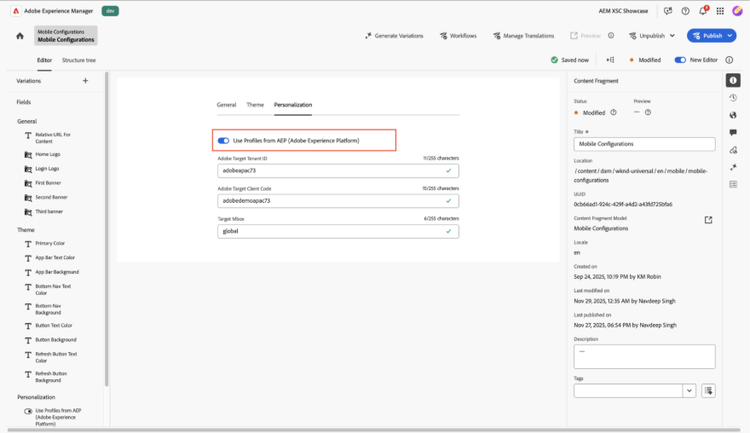
- Head to the configuration fragment for your brand (My Brand > Configurations)
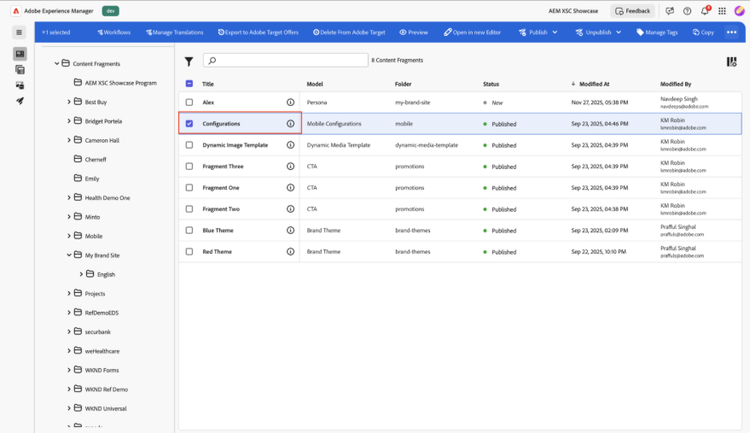
- Head to the Personalization tab and turn on “AEP Profile”
- Ensure to publish the configuration once changes are made.
Persona:
Username
Age
Gender
Location
Occupation
Interest
Adding Personalization tags in CTA Offer
- Go to the CTA Offer Fragment you want to personalize in your brand’s folder.
- Use {{profile.AttributeName}} tag in your fragment content, the attribute will be injected during run-time in your application.
NOTE
The AttributeName, is the attribute already present in the profile schema of the persona.
The list of OOTB profile attributes are
- userName
- name
- age
- gender
- interest
- occupation
These attribute names are case-sensitive.
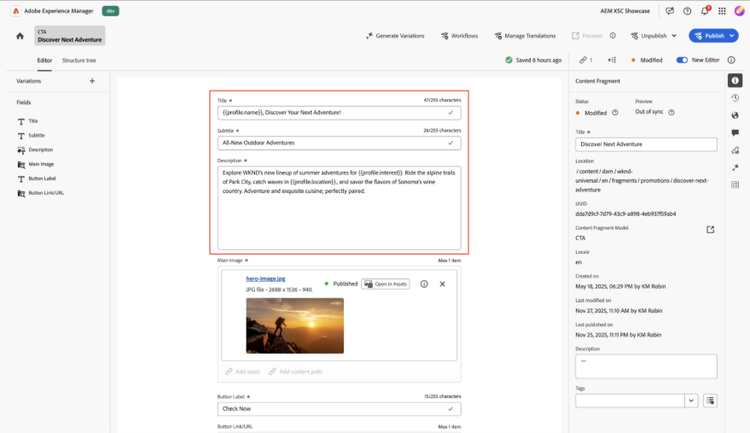
- Publish the fragment once ready with the changes
Consuming the Personalization Attributes in Mobile App
- In the mobile app, once in the home screen click on the top-right corner (gear-icon) to head to the settings menu.
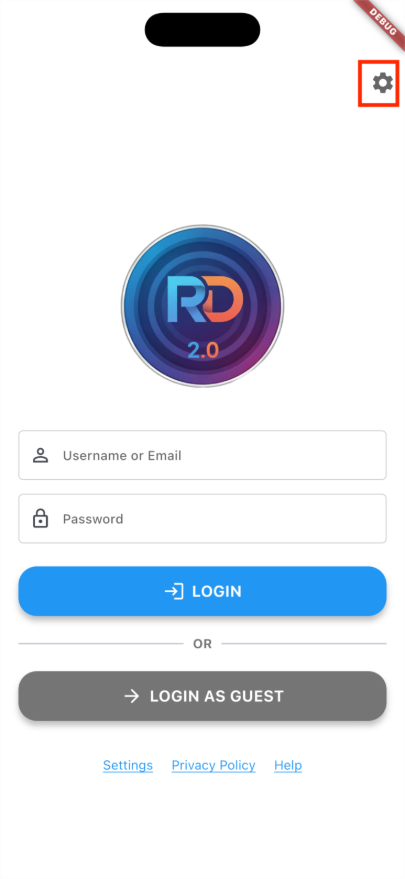
- Save the configuration for your desired brand as done in previous modules.
- Hit Save Configuration to save your configuration.
- Head back to the Home Screen by clicking on the Home Icon.
- Now, Login with username or email of the Persona
- You can optionally enter the password
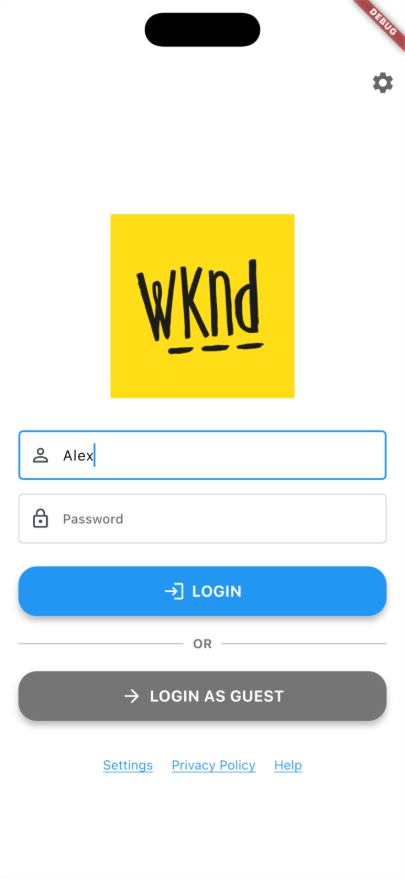
- As you login you will notice the fragment in the mobile app contains personalized content.
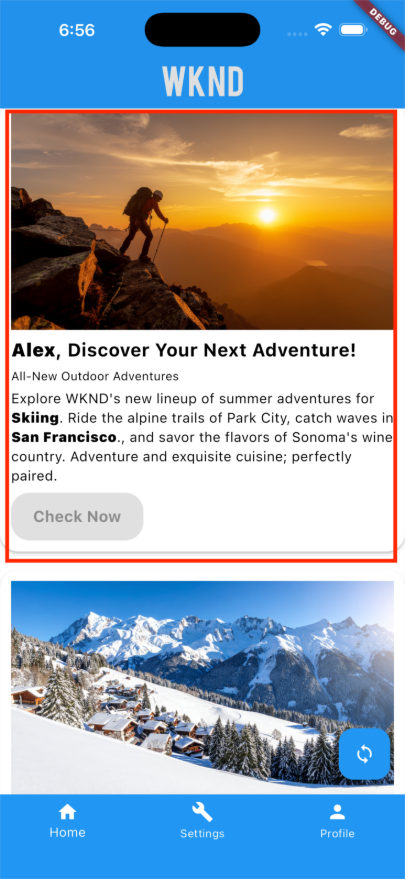
- Optionally, you can click on the profile icon, in the bottom right corner, to view the logged in user profile.
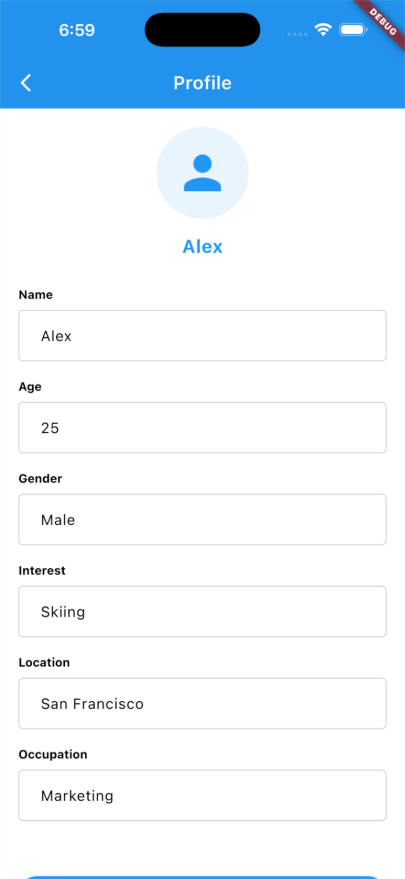
- You can make changes to your profile, which will be saved locally for your profile.
- Click on the Save Profile button to save the profile with changes, you will find your fragment updated with the updated profile.