AEM Sites Personalization Use-case Overview
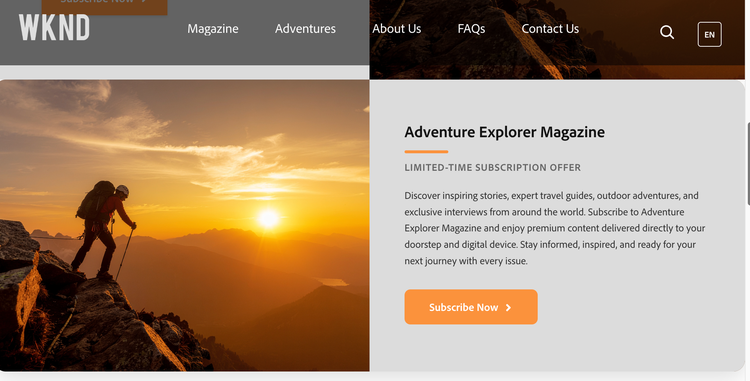
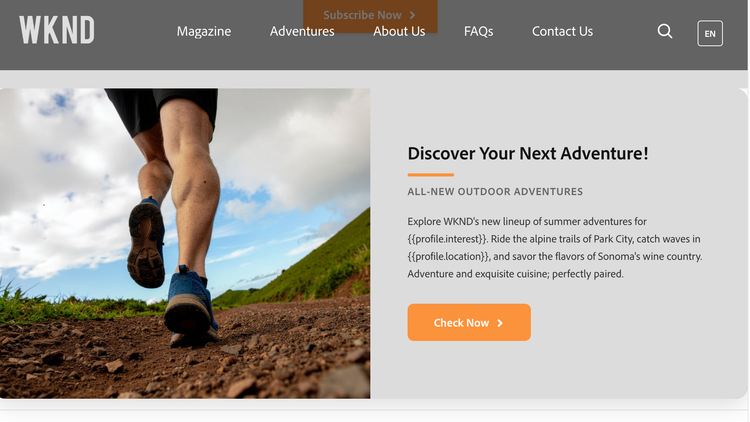
A web page shows some promotional content. By default, it renders a default author-selected content.
At runtime, Adobe Target swaps it for a personalized Content Fragment based on the visitor audience, e.g.:
- Magazine Lovers → magazine-themed offer
- Adventure Lovers → adventure-themed offer
- Everyone else → the default Content Fragment
Audience can be defined as per the business use-case.
Some simple examples: You can use previously visited page URL containing certain keyword 'magazine' or 'adventure', current page url params have some campaign id like “?campaign=NewYear”, etc.
Prerequisites
- AEM as a Cloud Service (Author + Publish) with the EDS site connected.
- Adobe Target access in any Adobe IMS organization.
- AEM ⇄ Target IMS integration configured
- “Promotion” block in AEM Sites (available in release v2.8.0 or higher)
Setup
Let’s set up the flow in your own environment. We need three things:
Step 1 — Connect AEM and Adobe Target
- Establish the AEM ⇄ Target IMS based integration so AEM can export Content Fragments to Target (IMS based integration instructions here).
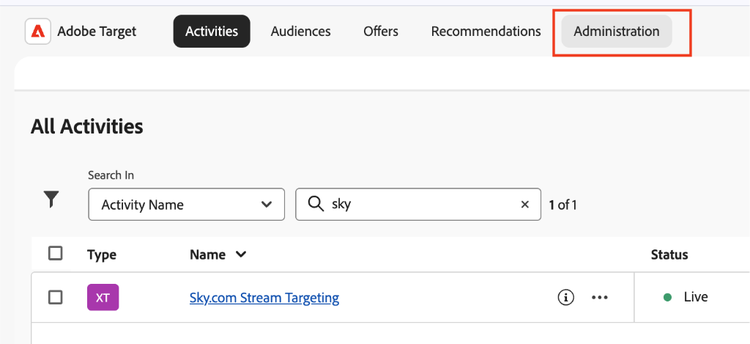
- Next, Go to your Adobe Target instance.
- Click on Administration tab.
- Go to Implementation section.
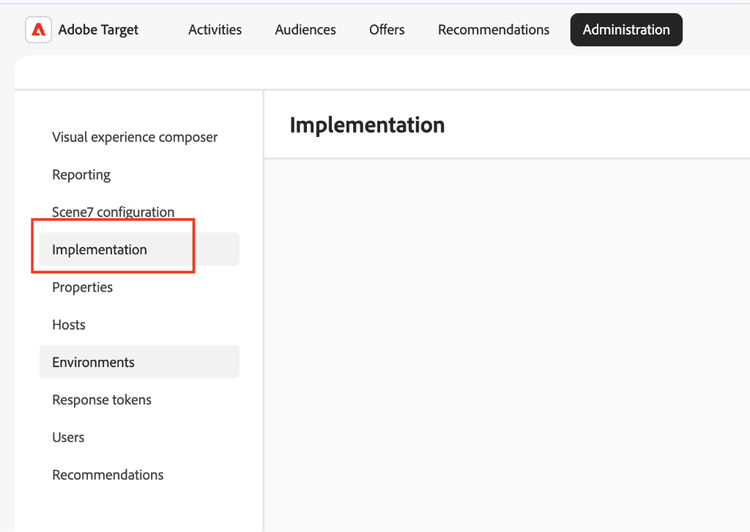
- Look for latest at.js and download it.
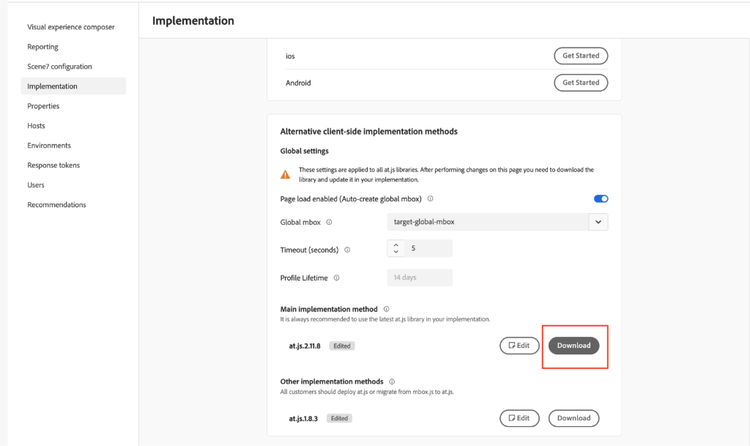
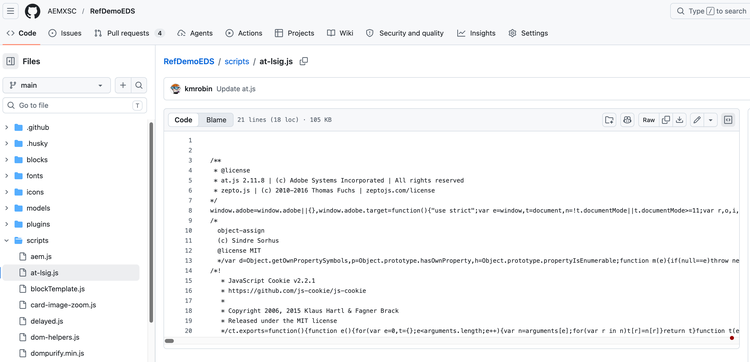
- Go to your EDS project’s github repository and replace the content of following file with your “at.js”:
/scripts/at-lsig.js
Step 2 — Create Content Fragments in AEM
- In AEM Author, open Assets → Files and your content folder (e.g. /content/dam/<site>/cf/promotions).
- Create → Content Fragment using the CTA model.
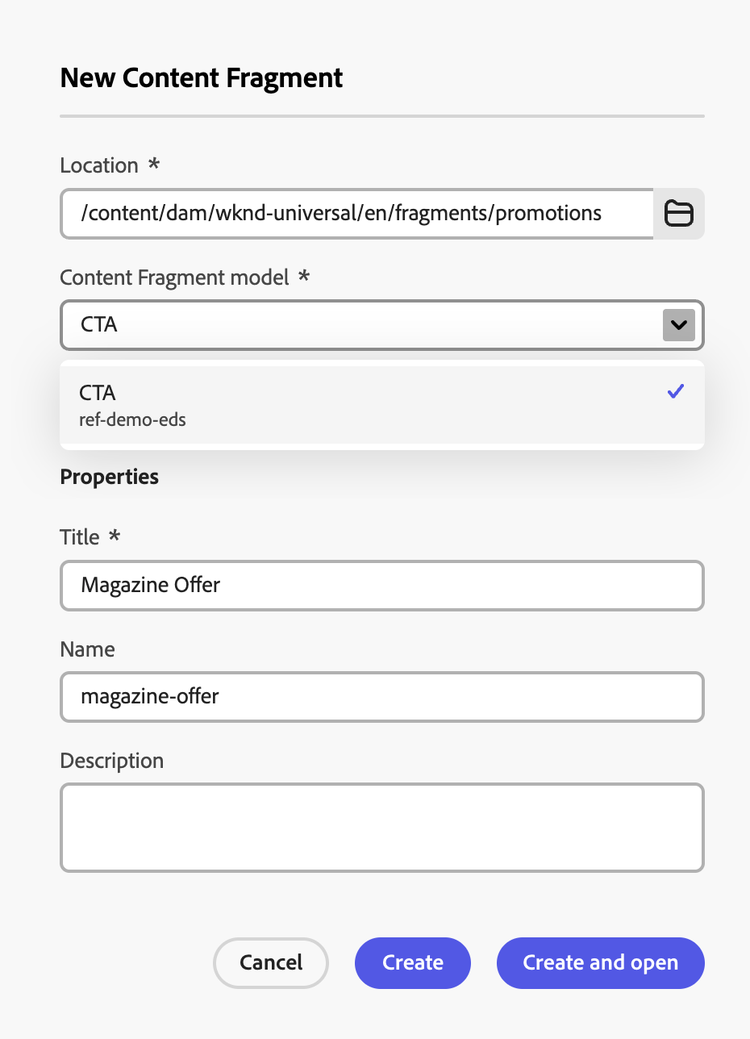
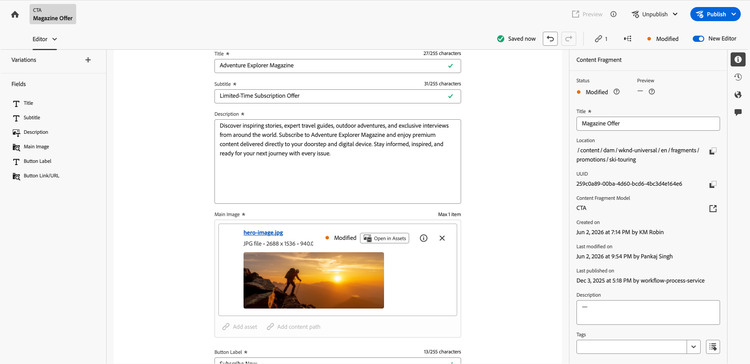
- Author the Default promotion (e.g. promo-default): title, subtitle, description, banner image, CTA label, CTA URL.
- Create the Magazine offer (promo-magazine) with magazine-themed content.
- Create the Adventure offer (promo-adventure) with adventure-themed content.
- Publish all three fragments
- Using AEM Assets Admin interface, export the content fragments to Adobe Target.
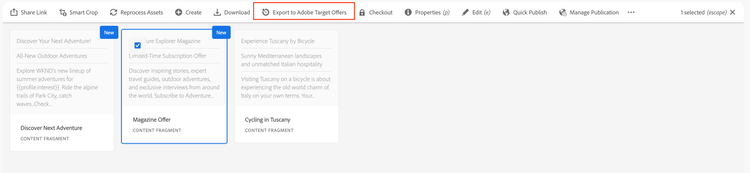
Step 3 — Create Audiences in Adobe Target
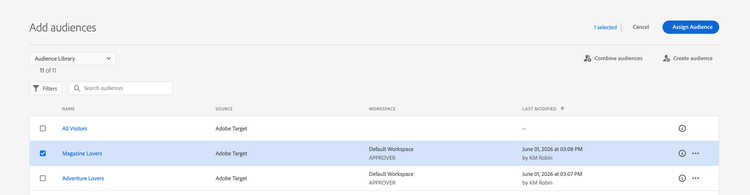
- Go to Target → Audiences → Create Audience.
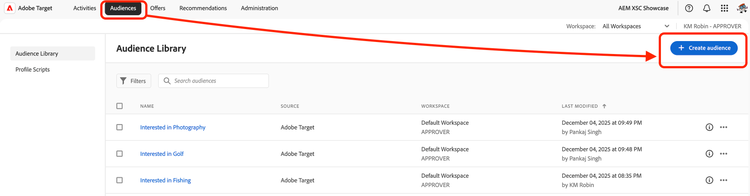
- Define your own audience e.g.:
- Magazine Lovers: rule based on the previous/referring page URL or campaign url contains 'magazine'.
- Adventure Lovers: same approach with 'adventure'.
- Save both audiences.
Step 4 — Create the XT (Experience Targeting) activity
- Target → Activities → Create Activity → Experience Targeting (XT).
- Choose the option “Other/API”.
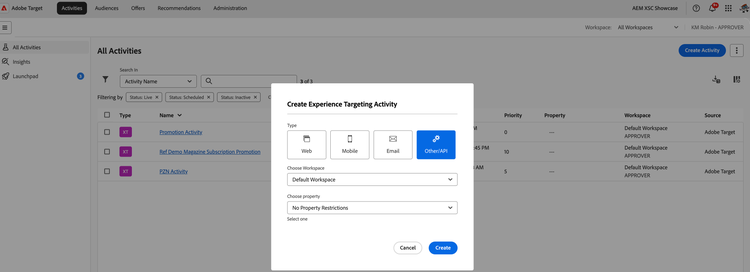
- Form Left Pane, Click "+" button to add an experience.
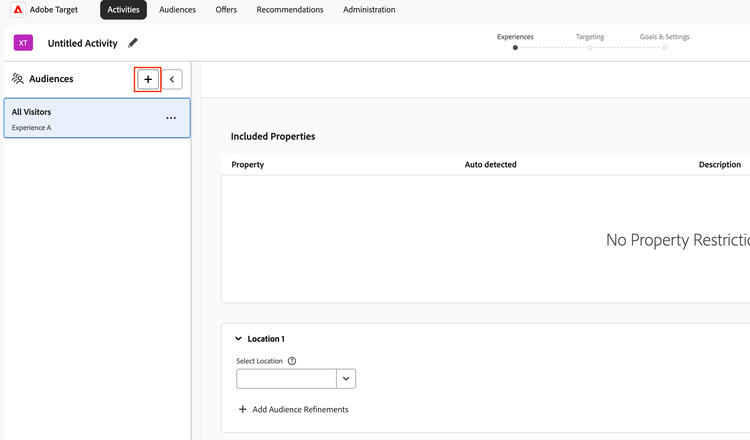
- Choose your audience e.g. Magazine Lovers:
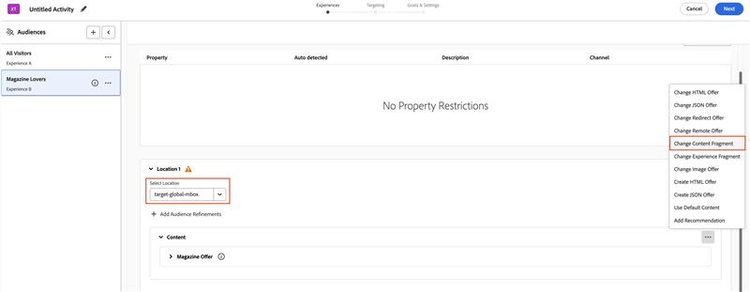
- Set the activity location to match the mbox (default is “target-global-mbox", if not present type it to create automatically) and the content fragment to the offer you would like to show e.g. “Magazine Offer” in our case.
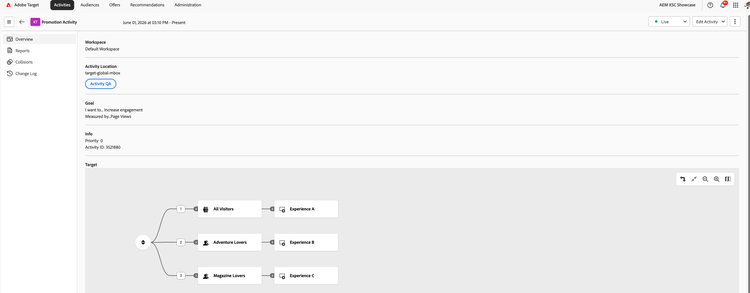
- Similarly repeat this for your second audience e.g. “Adventure Lovers”.
- Proceed and activate the XT activity.
Step 5 — Author the Promotion block on the website
- Open the desired page in the Universal Editor and insert the Promotion block.
- Default Content Fragment (required): pick promo-default.
- Display Style: Default (card), Image Left/Right/Top/Bottom.
- Text Alignment: Center / Left / Right.
- Target Mbox Name: leave “target-global-mbox “or set the named mbox used by your XT activity.
- Publish the page.
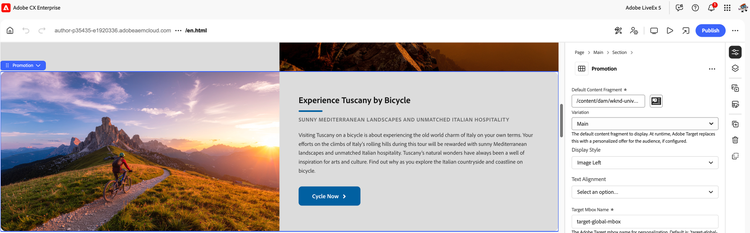
If no default CF is selected, the editor shows a placeholder and no card renders on publish.
The Demo
- Default: open the page with no qualifying audience; confirm the default CF renders.
- Magazine Lovers: navigate to a 'magazine' section page and return to the home page (by clicking the brand logo)
- Adventure Lovers: repeat with 'adventure' to view the personalized experience.