Personalization through AEM
In this module we will be covering Personalizing Offer Fragments through AEM.
Create Persona In AEM
You need to create a persona fragment in AEM which will be consumed by the Mobile App, during the login process.
- Head to AEM Start Screen > Content Fragments
- Select your Brand Folder where you want to create the Persona Fragment
- Click on “Create” > “Content Fragment” button to create a new Content Fragment
- Fill in the details suitably, select the Content Fragment Model as “Persona”
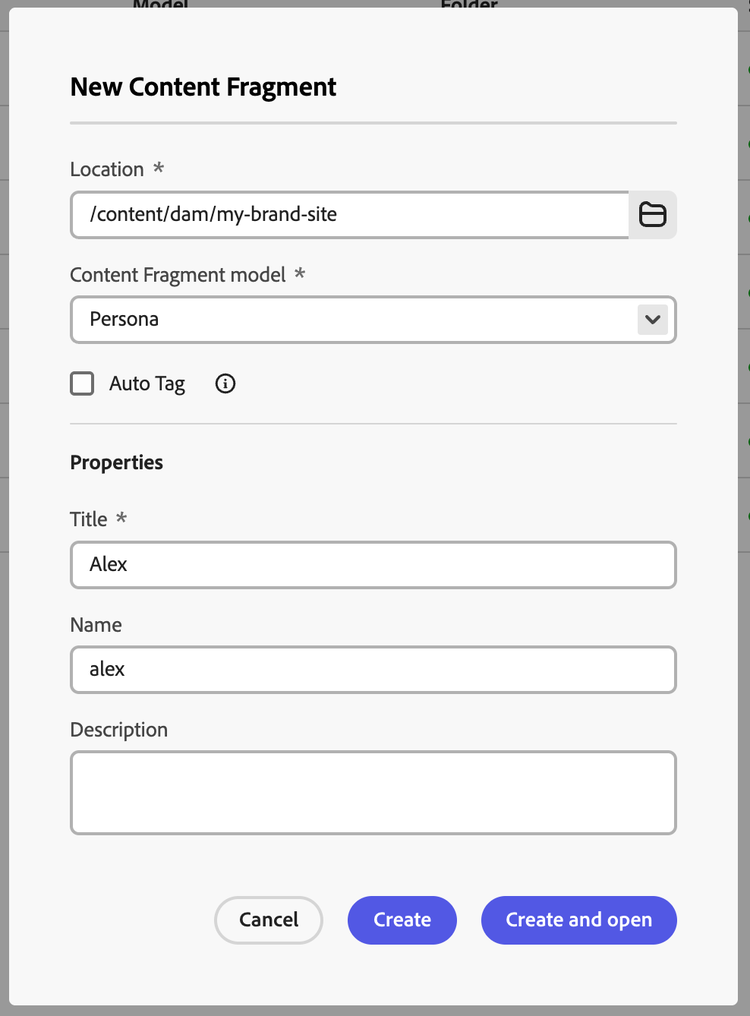
- Fill in the details for your persona
NOTE
“User Name or Email” field needs to be unique across your system
- Publish the persona once ready with the details
Customizing fields for Persona
This is an optional step and should be done only if required, kindly read through all the steps before making any changes
- Head to AEM Start Screen > Tools > General > Content Fragment Models
- Head to the “Ref Demo EDS” config folder
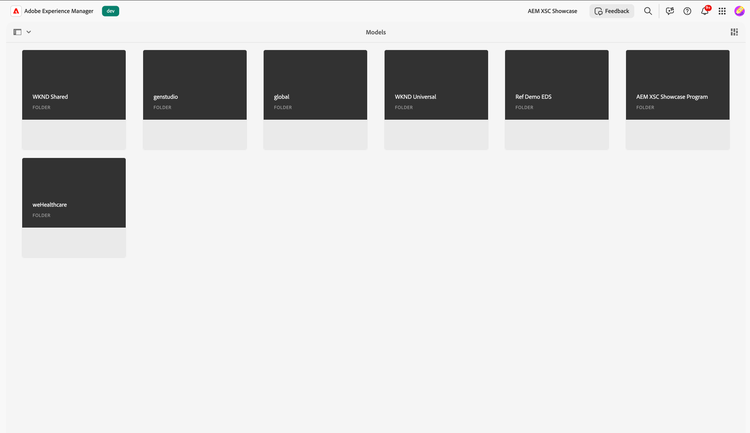
- Click to edit the “Persona” Model
- A Warning Pop-up appear, to continue editing, click on the “Edit” button.
- You can now add/remove/update the fields in your model.
- Once ready with the changes, make sure to publish the model
- Head to the GraphQL query editor and make the appropriate changes, and publish the GraphQL query.
- Also, with the update of the Content Fragment model all your existing Persona fragments would need an update to the publish tier.
NOTE
Ensure the fields are only Single Line Text and do not edit the username field
Adding Personalization tags in CTA Offer
- Head to the CTA Offer Fragment which you want to personalize, present in your brand folder.
- Use {{profile.AttributeName}} tag in your fragment content, the attribute will be injected during run-time in your application.
NOTE
The AttributeName, is the field name present in the persona fragment.
The list of OOTB persona attributes are
- userName
- name
- age
- gender
- interest
- occupation
These attribute names are case-sensitive.
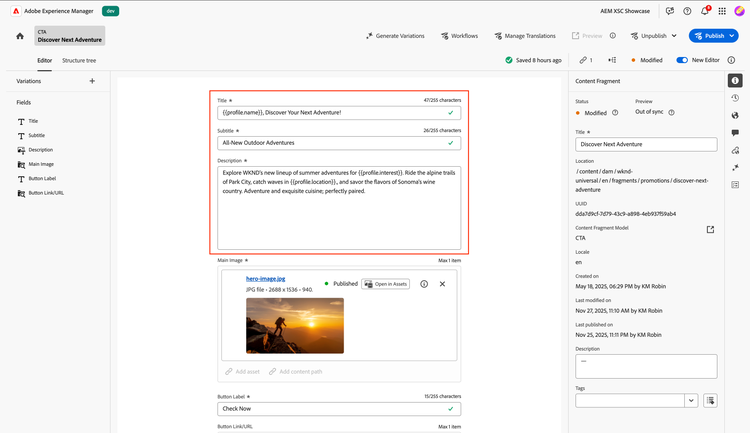
- Publish the fragment once ready with the changes
Consuming the Persona in Mobile App
- In the mobile app, once in the home screen click on the top-right corner (gear-icon) to head to the settings menu.
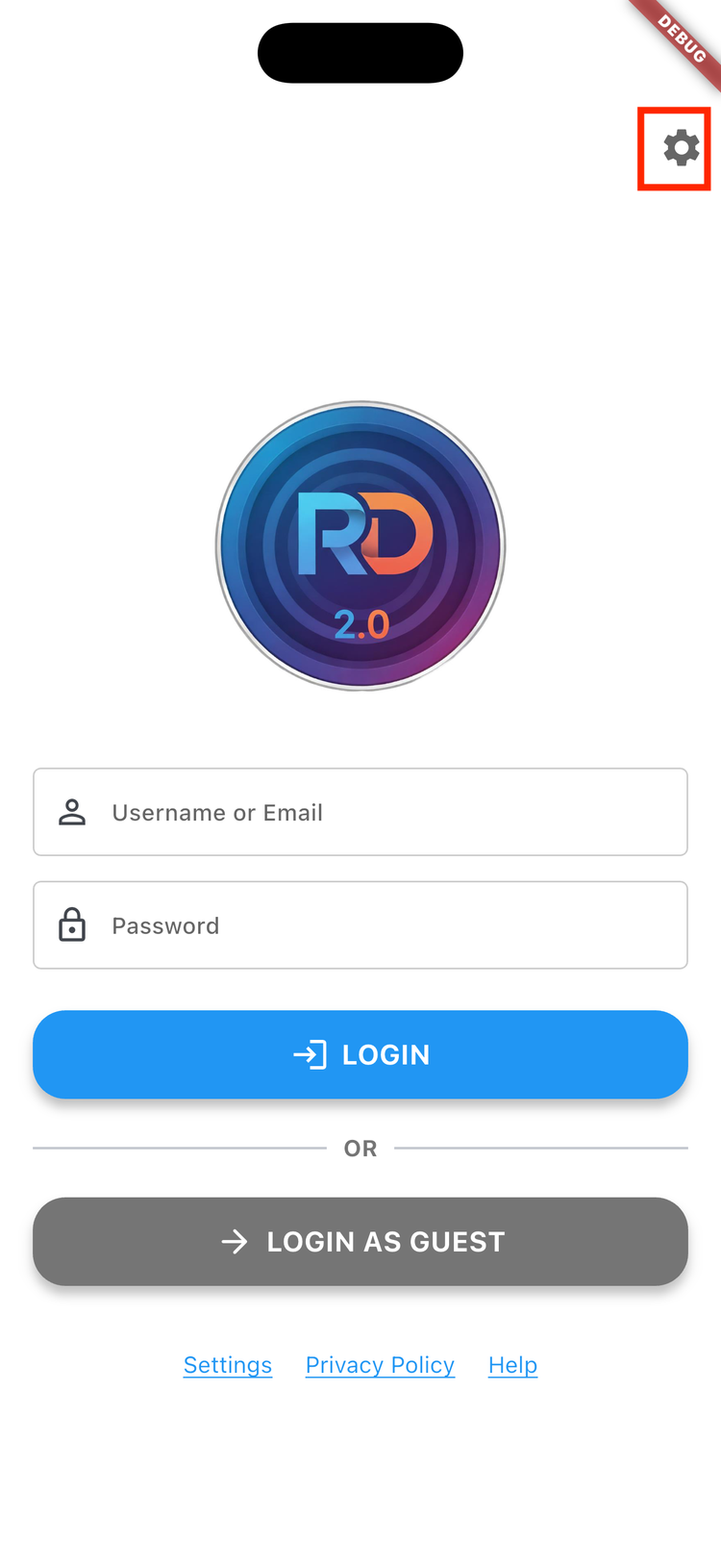
- Save the configuration for your desired brand as done in previous modules.
- Hit Save Configuration to save your configuration.
- Head back to the Home Screen by clicking on the Home Icon.
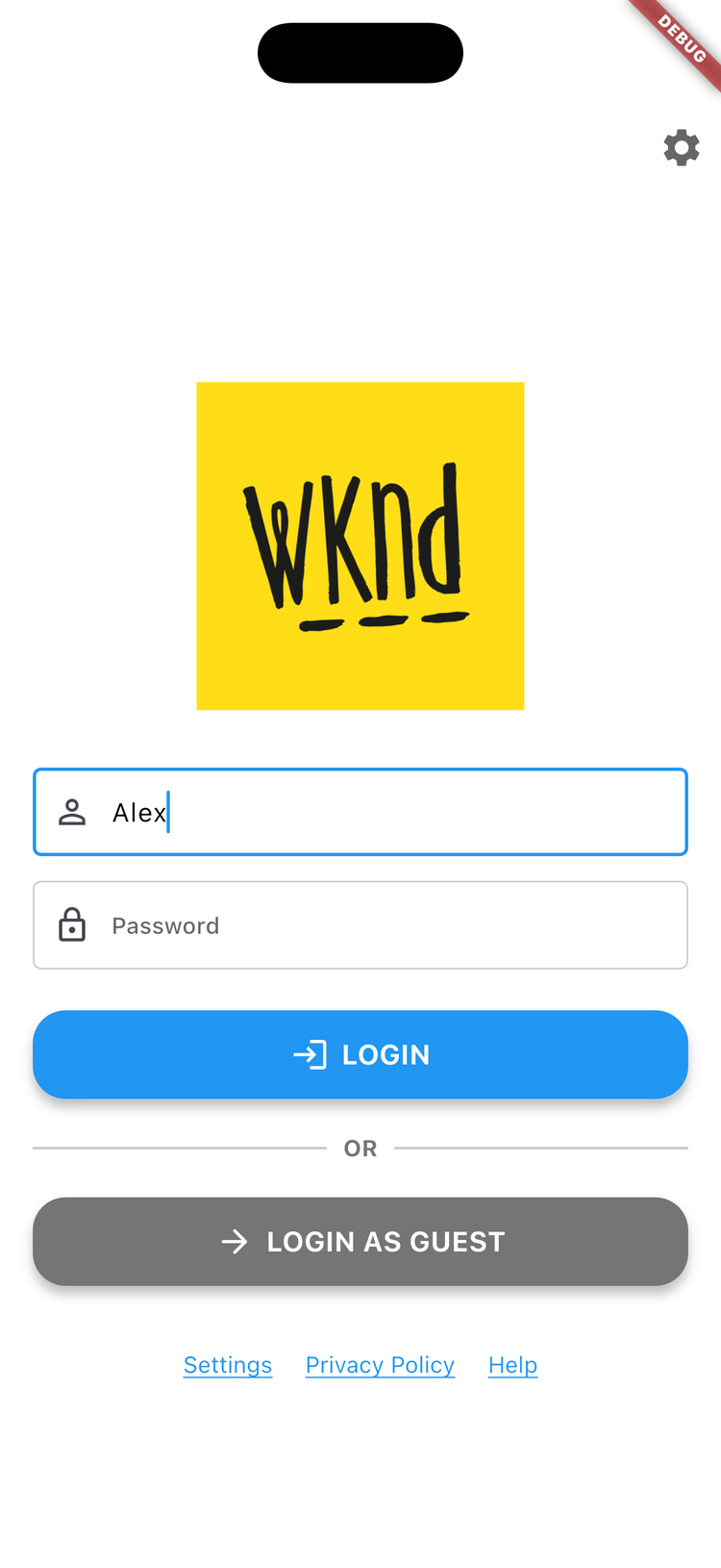
- Now, Login with your username or email, created in the persona
- You can optionally enter the password
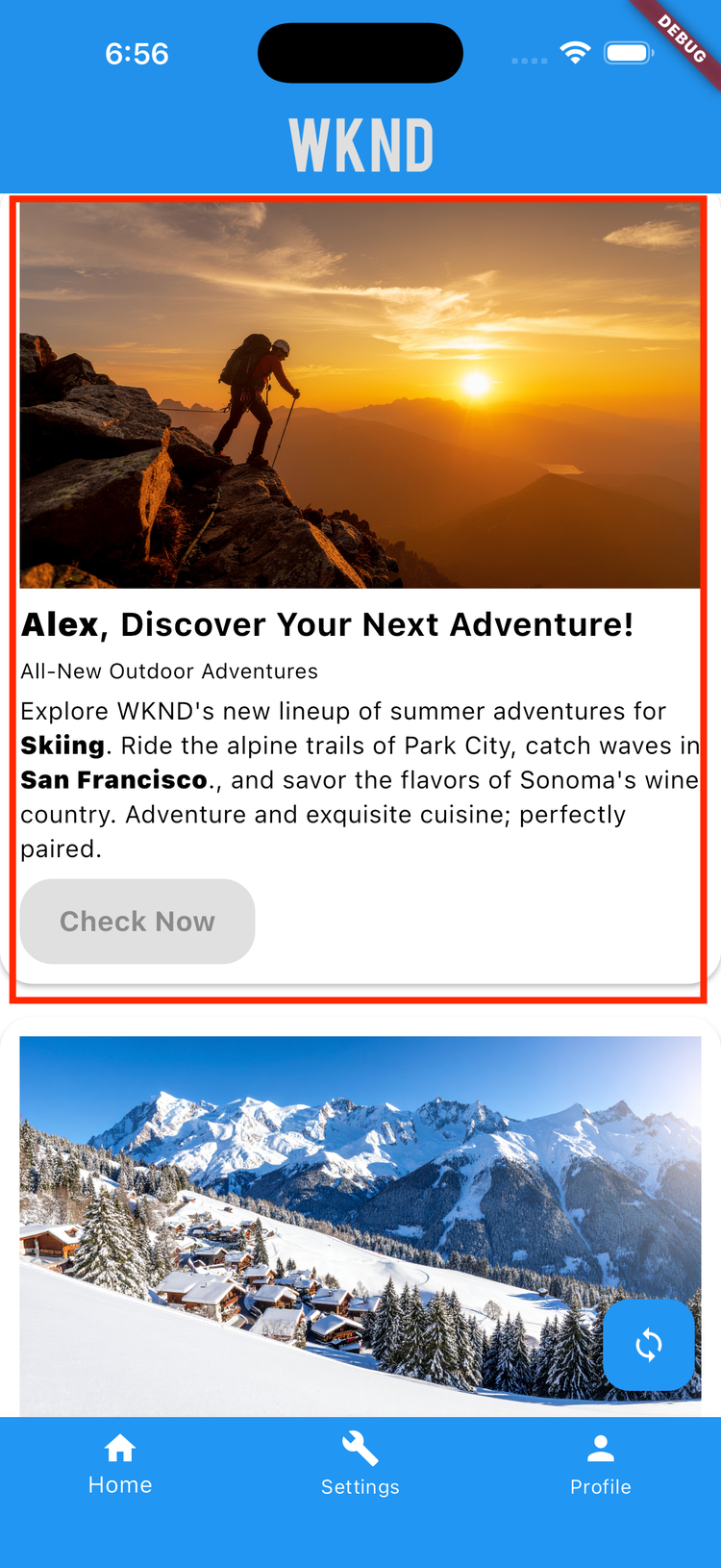
- As you login you can find your fragment with personalized content.
- Optionally, you can click on the profile icon, in the bottom right corner, to view the logged in user profile.
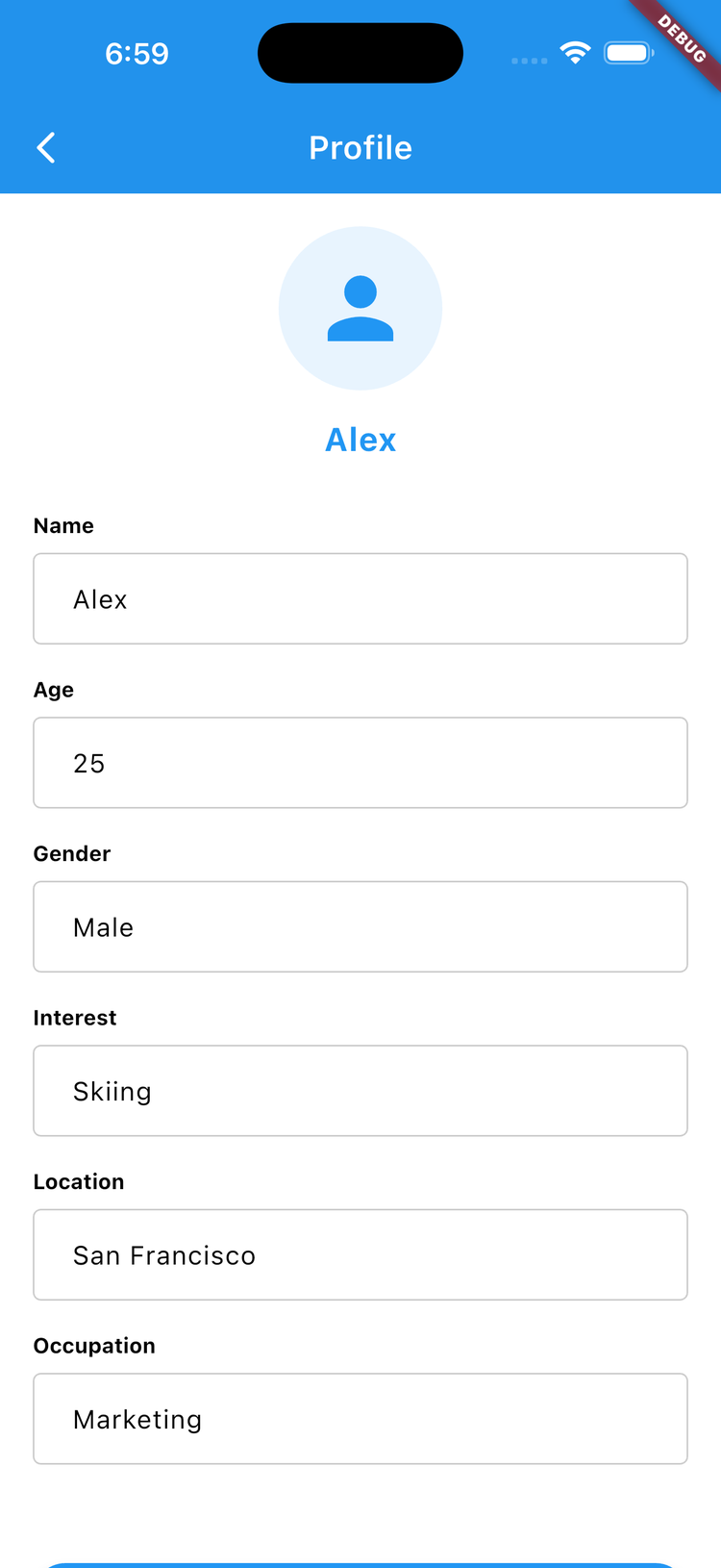
- You can make changes to your profile, which will be saved locally for your profile.
- Click on the Save Profile button to save the profile with changes, you will find your fragment updated with the updated profile.