- Create a Google Spreadsheet with your account and share same with forms@adobe.com. Please make sure that spreadsheet sheet name is incoming & columns name should match with form fields name.
- Click on the pencil icon available next to the rule editor icon. That opens a new pop-up window.
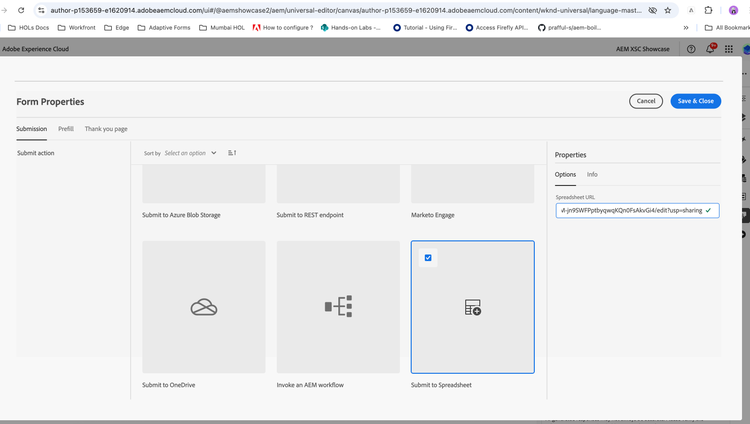
- Choose Submit to Spreadsheet option available in Submission tab. A text field will appear asking for the Spreadsheet URL. Enter the Google Spreadsheet URL created earlier.
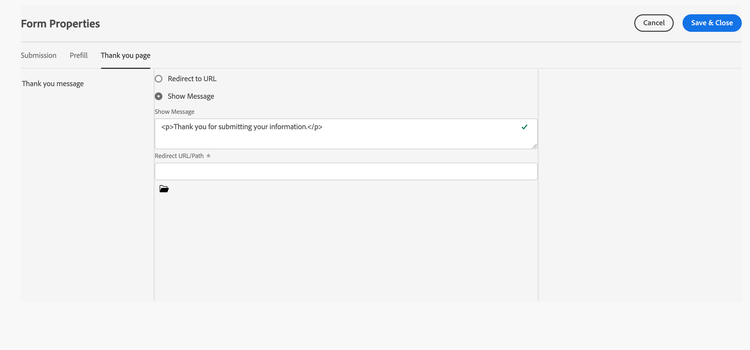
- Select Thank you page tab from the pop-up window and update the Show Message field. This message will appear once form is submitted.
- Click on the Save & Close to close the pop-up window and save your changes.
- We also need a submit button in the Form to perform the submit operation.