Setup AEM Assets
Adding AEM integration
The AEM integration provides an out-of-the-box way to work with your AEM assets. It also allows you to use the DA App SDK to build rich applications that leverage any content stored on your AEM as a Cloud Service instance.
Prerequisites
- You have AEMaaCS with either a publish instance or Dynamic Media.
Step 1 – AEM as a Cloud Service
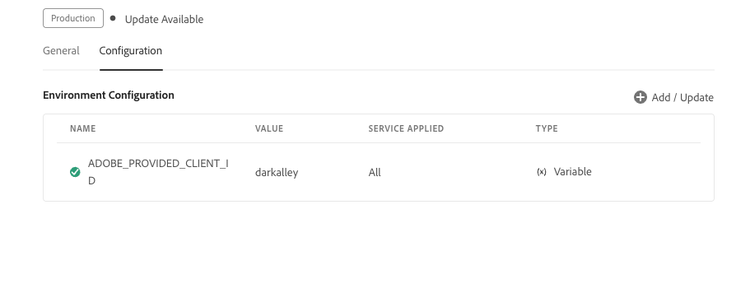
An AEM environment config will need to be set. Details in the screenshot below. Expect a full restart (~10-20 minutes) when this is saved.
- Environment Configuration: ADOBE_PROVIDED_CLIENT_ID | darkalley
Step 2 – Document Authoring
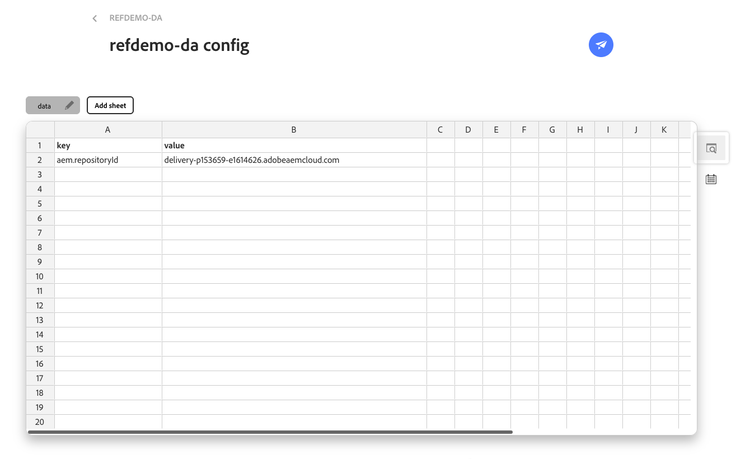
- Visit: https://da.live/config#/{{name-of-da-org}}/
- Add key | value if it doesn’t exist already.
- Add aem.repositoryId | sub.youraemcloud.com
- Set aem.repositoryId as author-pxxxx-eyyyy.adobeaemcloud.com to select assets from author
- Set aem.repositoryId as delivery-pxxxx-eyyyy.adobeaemcloud.com to select assets from dynamic media delivery
- Paper plane > Save
Step 3 – Use it
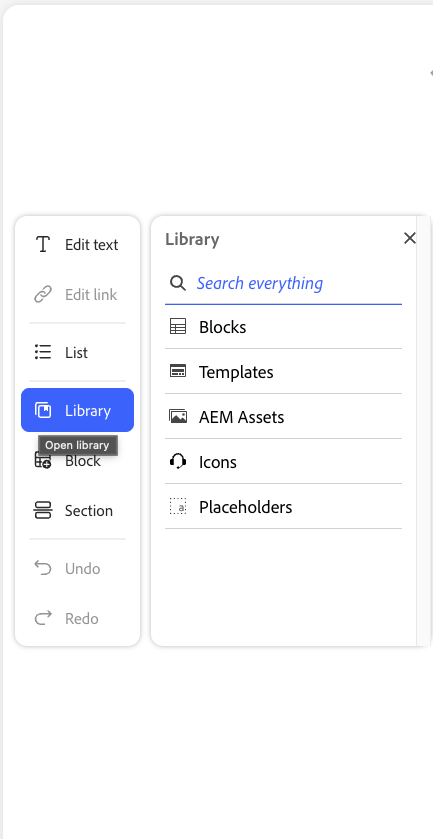
- Open any page and notice you have a new image icon in your toolbar. This will open a modal to your AEM Assets.
- Select the asset you want and it will import into your document.
- The asset must be published for DA & Edge Delivery Services to see it.
NOTE
If the asset you select is broken in DA, ensure that the asset is published.