Document Authoring (DA)
In this tutorial we will setup a WKND Branded site using Document Authoring, where you can have cross-channel editing experience both in Document as well as Universal Editor.
Getting started
- The fastest and easiest way to get started following AEM best practices is to create your repository using this repository as a template, which is setup from the base of AEM Block Collection GitHub repository.
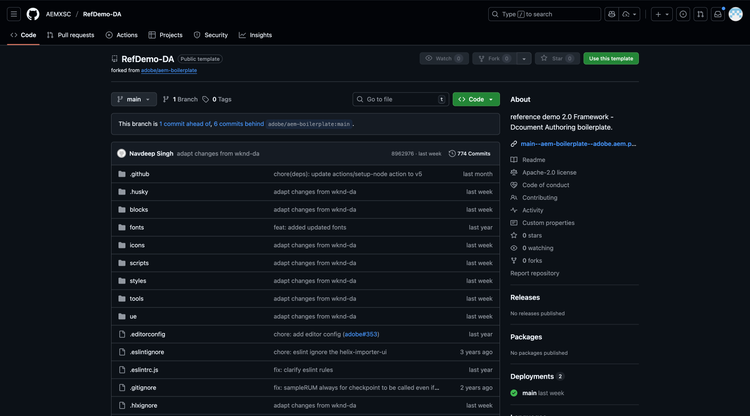
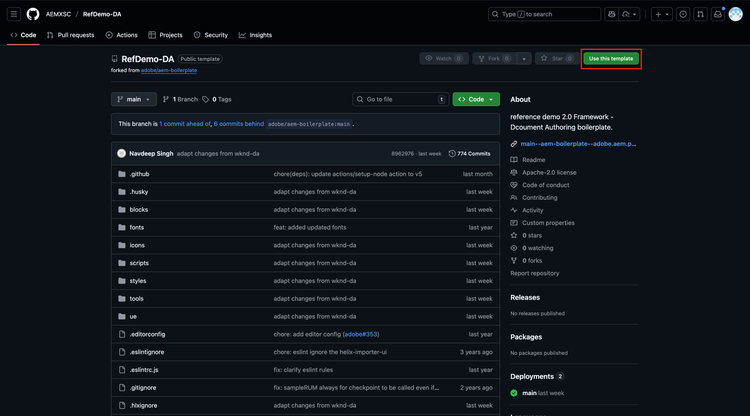
- Click the Use this template button and select Create a new repository and select the user or org you would like to own this repository.
- The only remaining step in GitHub is to install the AEM Code Sync GitHub App on your repository by visiting this link: https://github.com/apps/aem-code-sync/installations/new. This app will sync code changes to AEM.
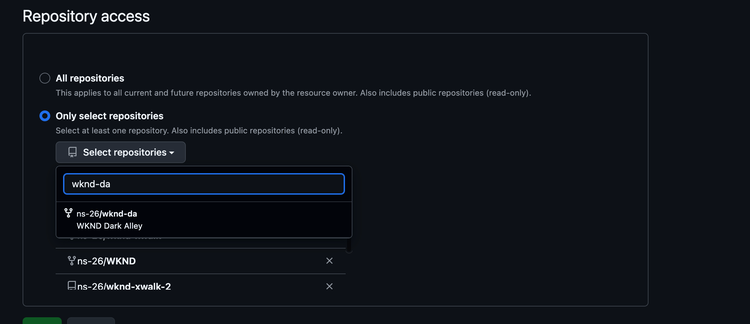
- In the Repository access settings of the AEM Code Sync App, make sure you select Only select Repositories (not All Repositories). Then select your newly created repository and click Save.
- You have a new website running on https://<branch>--<repo>--<owner>.aem.live In the example above that’s https://main--refdemo-da--aemxsc.aem.live
Create your content
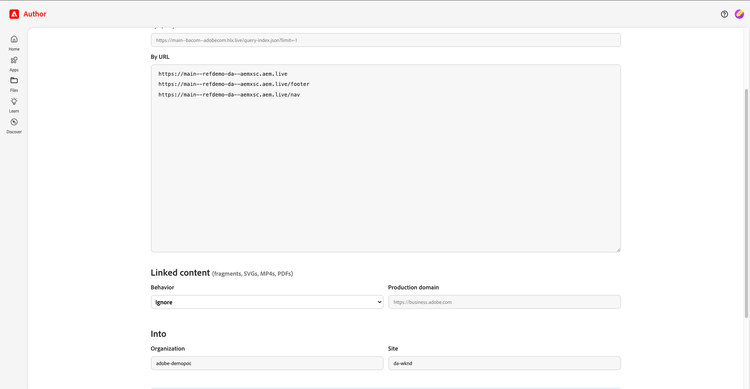
- To create the sample WKND content on your site, head over to DA Importer App.
- Set the following values to
- By url -
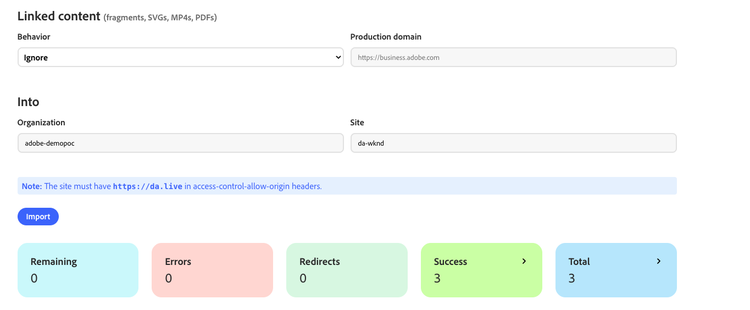
- Organization - {YOUR_DA-SITE_ORG}
- Site - {YOUR_DA-SITE}
- Click Import to start the process.
- You should see a “Success” message upon successful import of the pages.
Note
If the import fails for you, you can optionally use this archive file, to create the pages manually in your DA site.
Preview & Publish your content
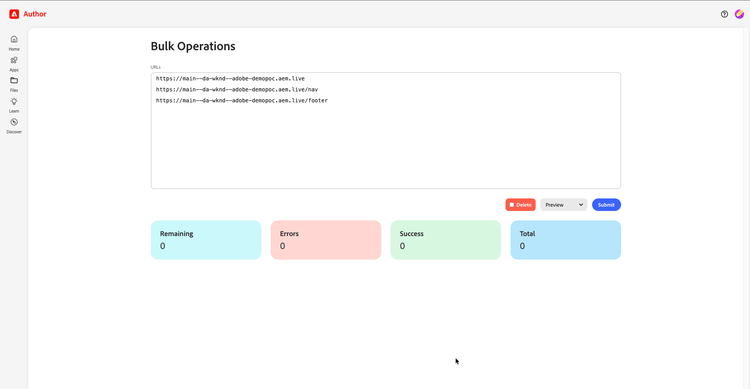
- Head over to the DA Bulk Operations App.
- Enter the urls of your site
- https://main--{your-site}--{your-org}.aem.live
- https://main--{your-site}--{your-org}.aem.live/nav
- https://main--{your-site}--{your-org}.aem.live/footer
- Select the Preview from the drop-down, hit Submit to bulk preview.
- Similarly select the Publish from the drop-down.