Elements on the Mobile App
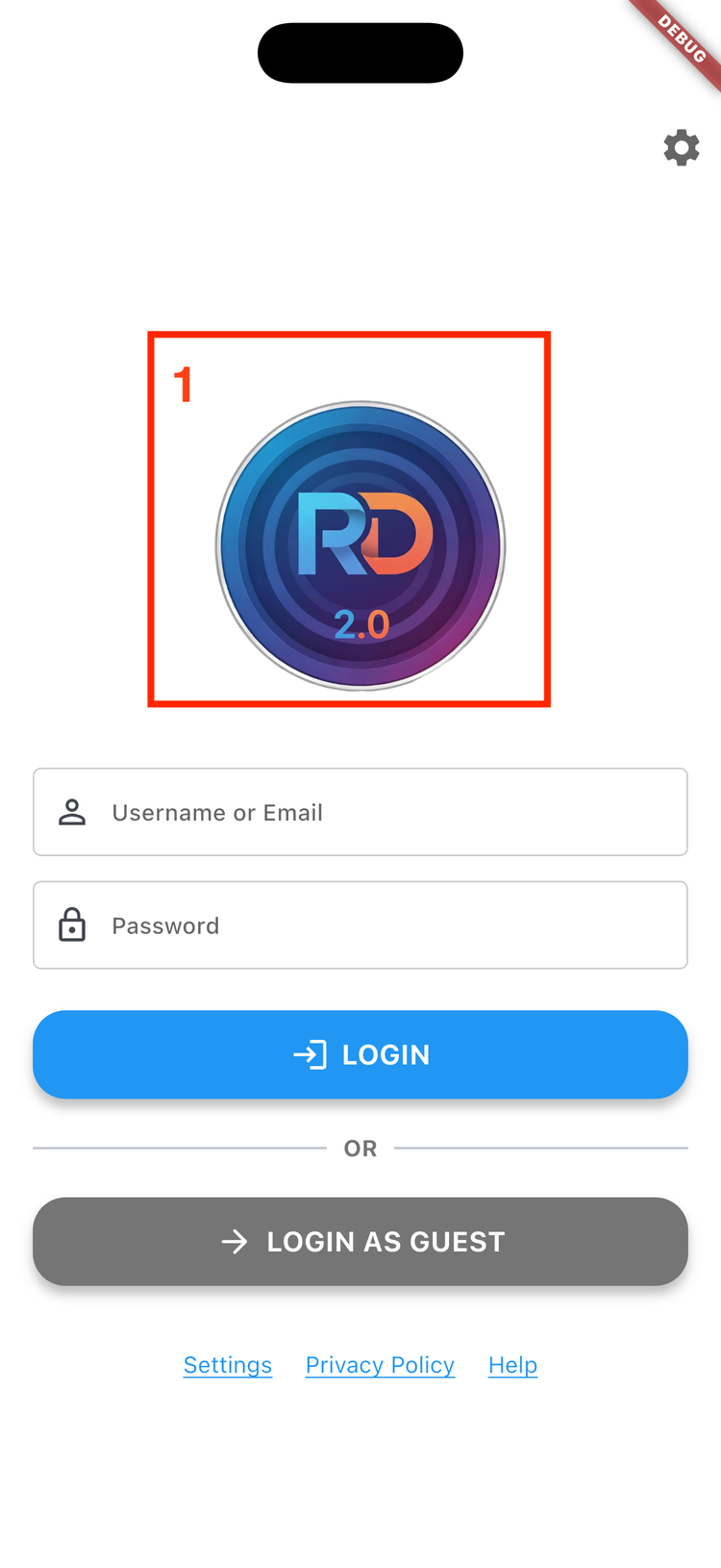
- Login Screen Logo
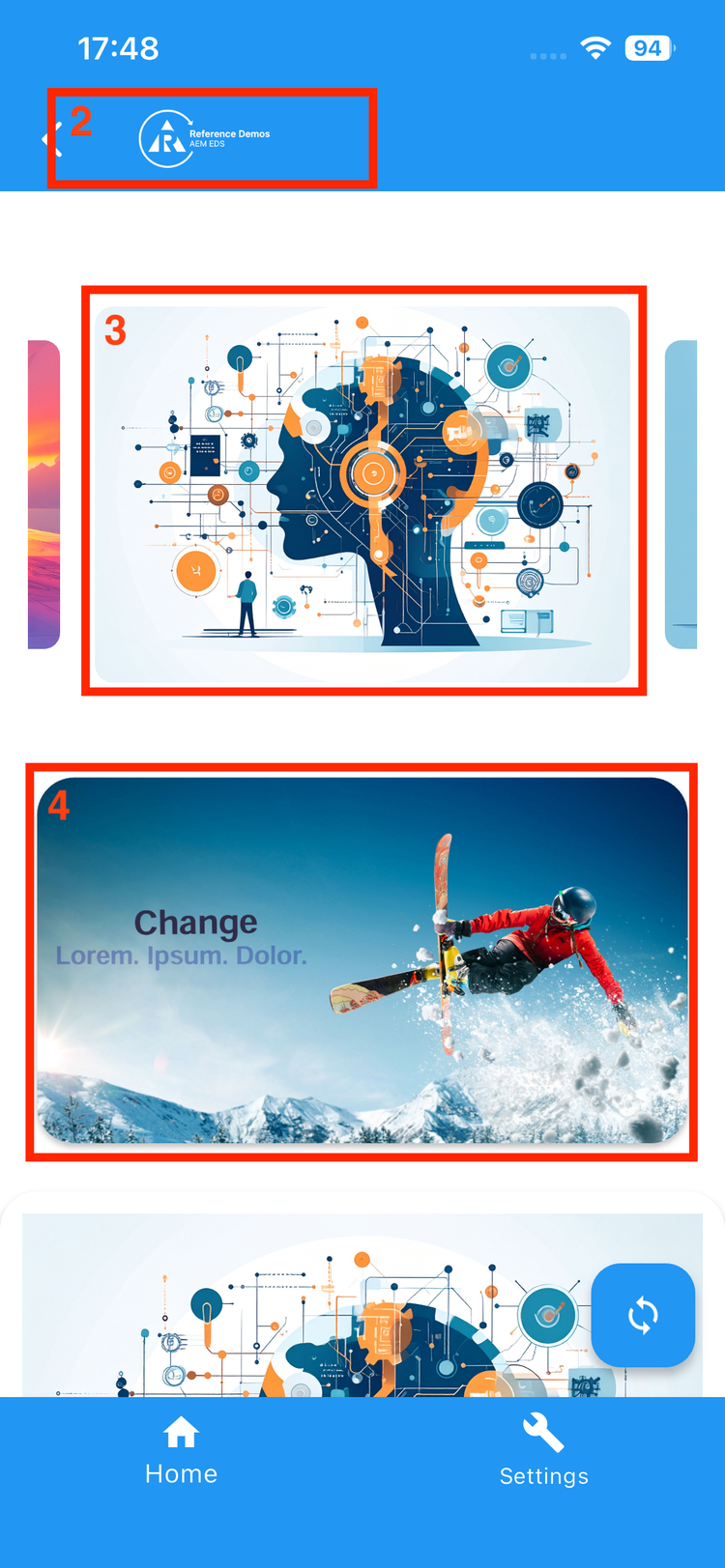
- Home Screen Logo
- Brand Banners
- Dynamic Media Template
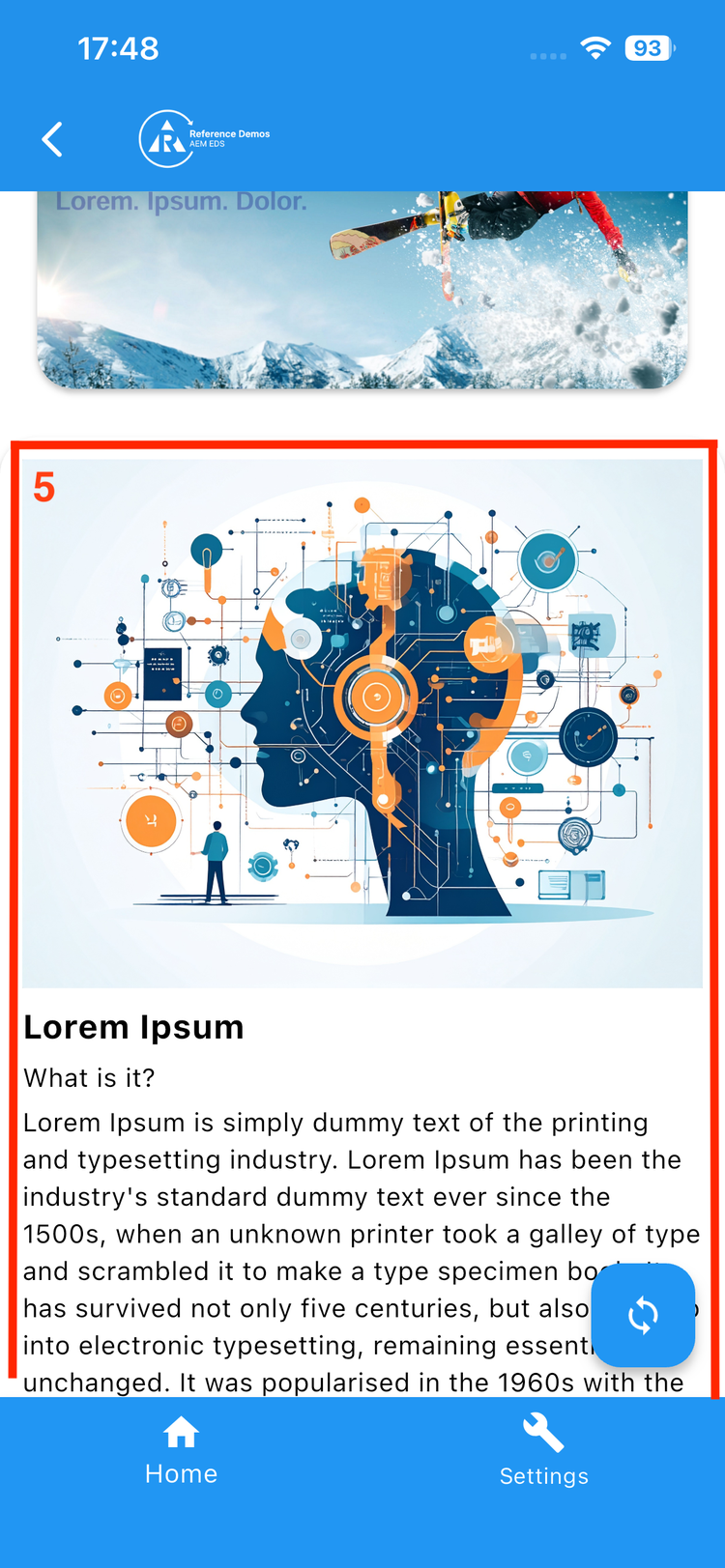
- Content Fragments
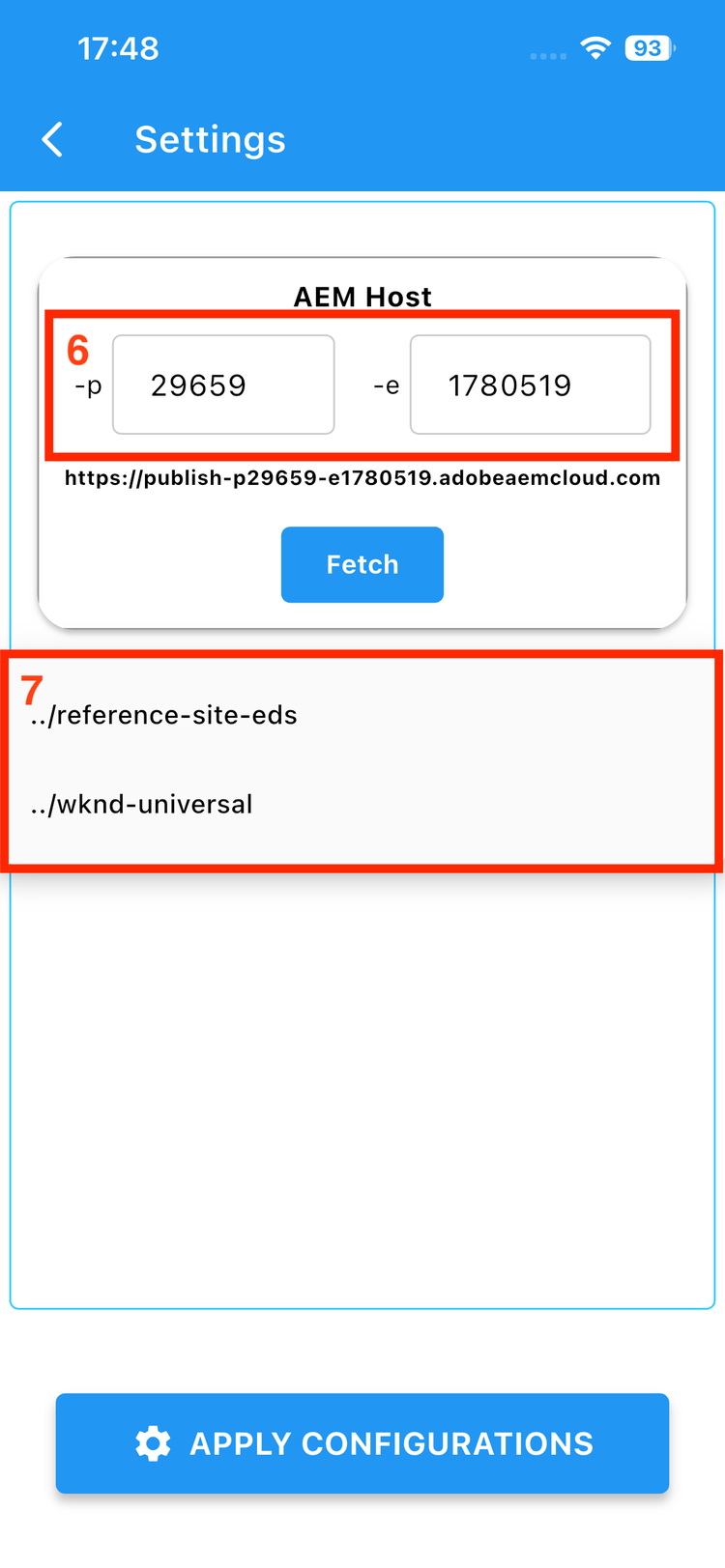
- AEM Host
- Configuration(s) for a demo
Downloading the Mobile App
- Follow prompts to download and install the mobile app.
- For mobile users who have never installed an Adobe certified app before on their device:
- iPhone Users, go to: Settings > General > VPN & Device Management and then Click on “Trust Adobe Inc”.
- Android Users: Trust the downloaded APK file
- After installation, open the app and proceed.
Customizing Content on the Mobile App
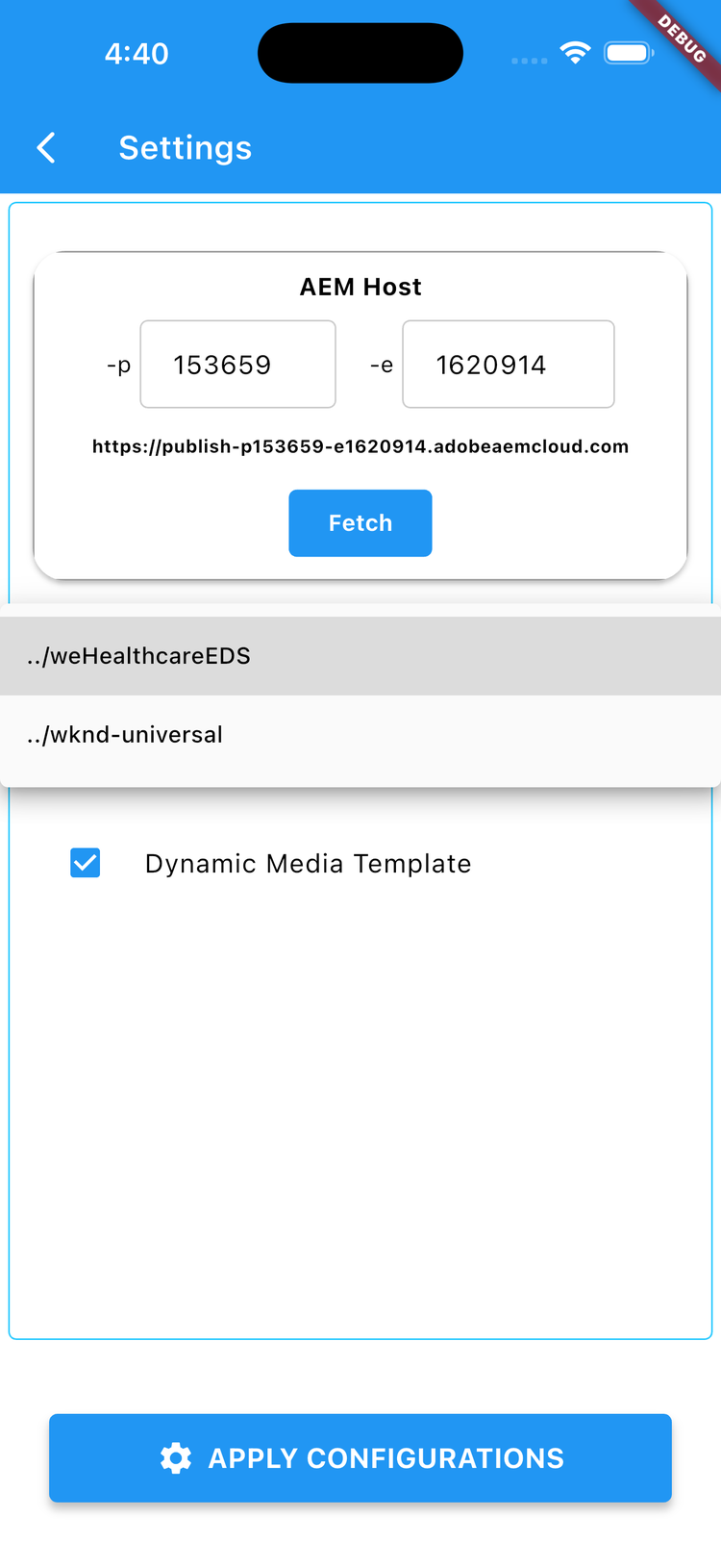
- Inside the App, navigate to “Settings” screen (option at bottom).
- If using your own AEM sandbox, update the environment details (values of p and e).
- Click Fetch button to get list of configured brands.
- Choose the location of your fragments from the dropdown.
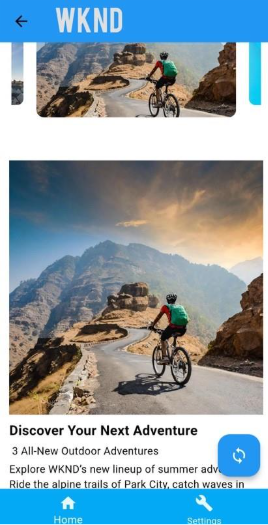
- “Apply configurations” and Woah...! You’re seeing your own content coming from AEM on your phone.
Setting up for mac
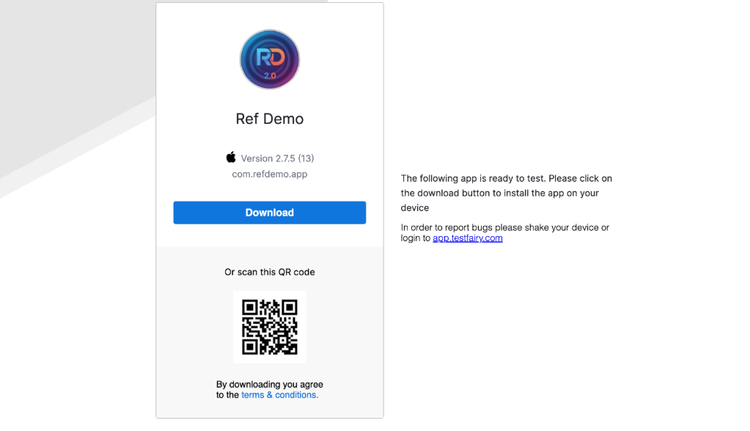
- To download the app on your mac, click on the iOS link to download the app
- Click on “Download > Open iOS App Installer” to install the app on your device.
- Once the app is downloaded you can find it in your Applications folder.
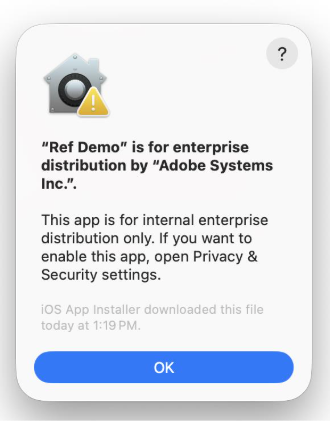
- If you have not accepted the certificate from “Adobe Inc.” you might get a prompt asking you to trust the certificate
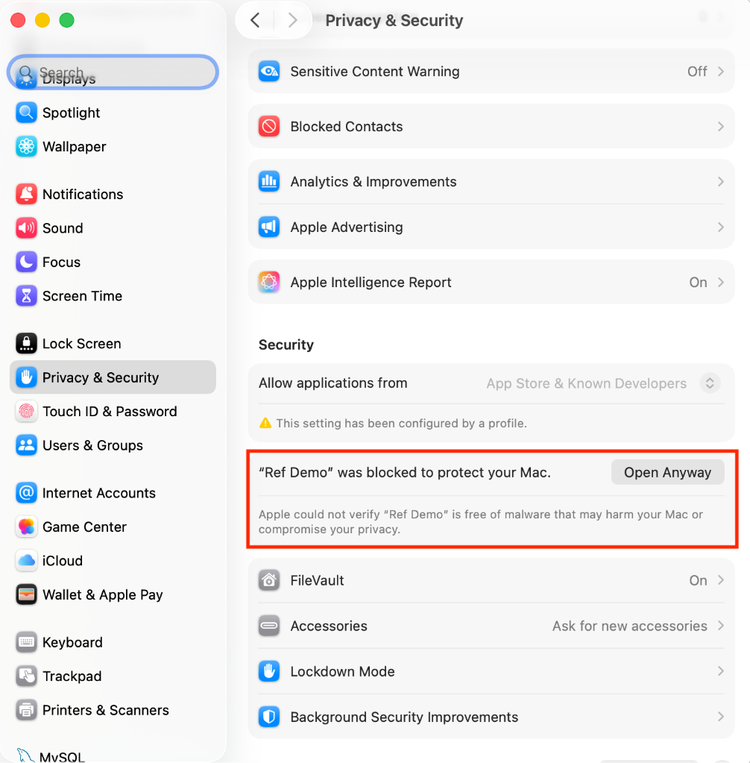
- You can trust the certificate by going to “System Settings > Privacy & Security > Security > Open Anyway”.