📱 Cross-channel experience via Mobile App
- Go to AEM Start Screen > Content Fragments
- Navigate to "Reference Demo EDS > English > Fragments" folder
- Create a new content fragment using the model “CTA offer”.
- Publish your content fragment and assets used in the fragment.
Quick Tip
You can create multiple fragments using this model, they will all be displayed in the app.
NOTE
The latest release of the mobile app is compatible with Ref-Demo package version 2.6.5 or later.
- Scan the QR code as per your specific device:
- Follow prompts to download and install the mobile app.
- For mobile users who have never installed an Adobe certified app before on their device:
- iPhone Users, go to: Settings > General > VPN & Device Management and then Click on “Trust Adobe Inc”.
- Android Users: Trust the downloaded APK file
- After installation, open the app and proceed.
- Inside the App, navigate to “Settings” screen (option at bottom).
- If using your own AEM sandbox, update the environment details (values of p and e).
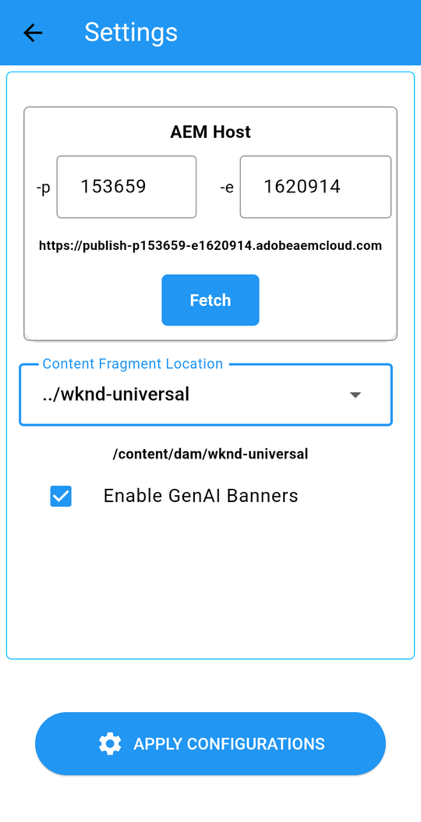
- Click Fetch button to get list of configured brands.
- Choose the location of your fragments from the dropdown.
- “Apply configurations” and Woah...! You’re seeing your own content coming from AEM on your phone.
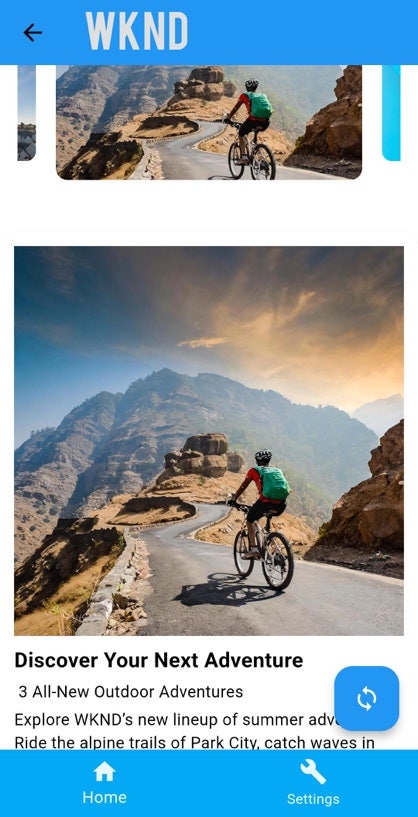
🛠 Make an edit in the content fragments, publish the fragment(s) and refresh your App home screen to view the change instantly (as you would typically see on the web page as well).