Configuration for Mobile App
You need to create configuration for consuming a demo content in the Mobile App, to locate the configuration for your app, head to your AEM Environment.
The mobile app has been architected so that you setup fully customizable demos and have multiple demos running from your AEM Environment, in this documentation we will be taking an example of how-to setup “My Brand” fictitious brand.
NOTE
As a rule of thumb, the content is being served from the publish tier of AEM, make sure to publish your changes after editing them for it to reflect in the mobile app.
Pre-requisite: You must use a template from Reference Demo 2.0 to create a new brand site.
- Head to AEM Start Screen > Assets > Files
- Find the folder for your demo, in this case My Brand.
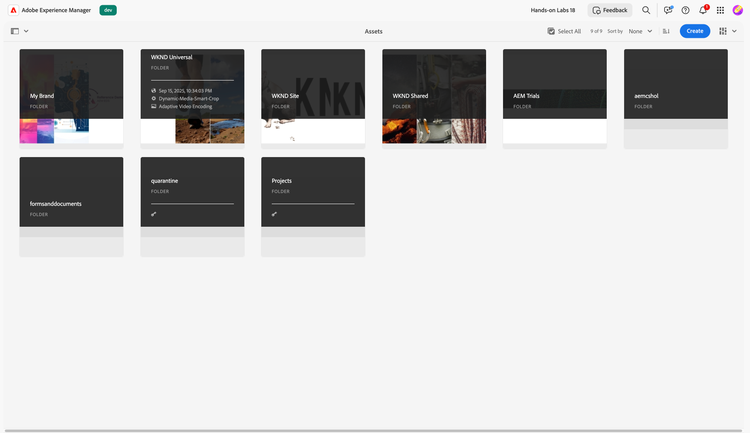
- Once in your project folder, head to English > Mobile.
- In the Mobile folder find the Configuration fragment (this content fragment is responsible for driving the content pieces on the mobile app, as seen in the getting started page)
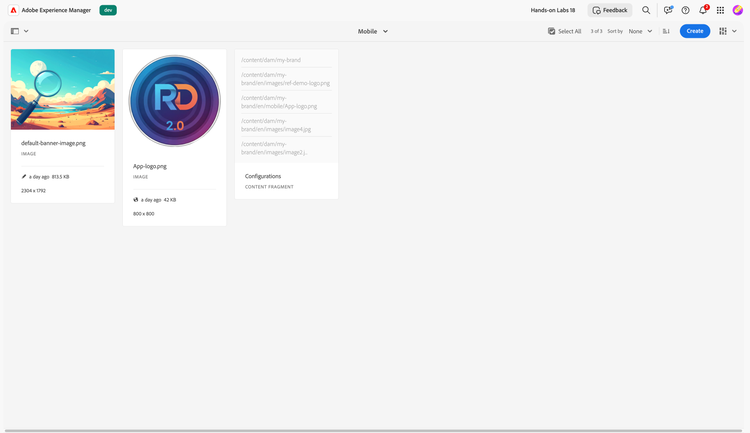
- Select and Edit (e) the Configuration fragment.
Content Changes
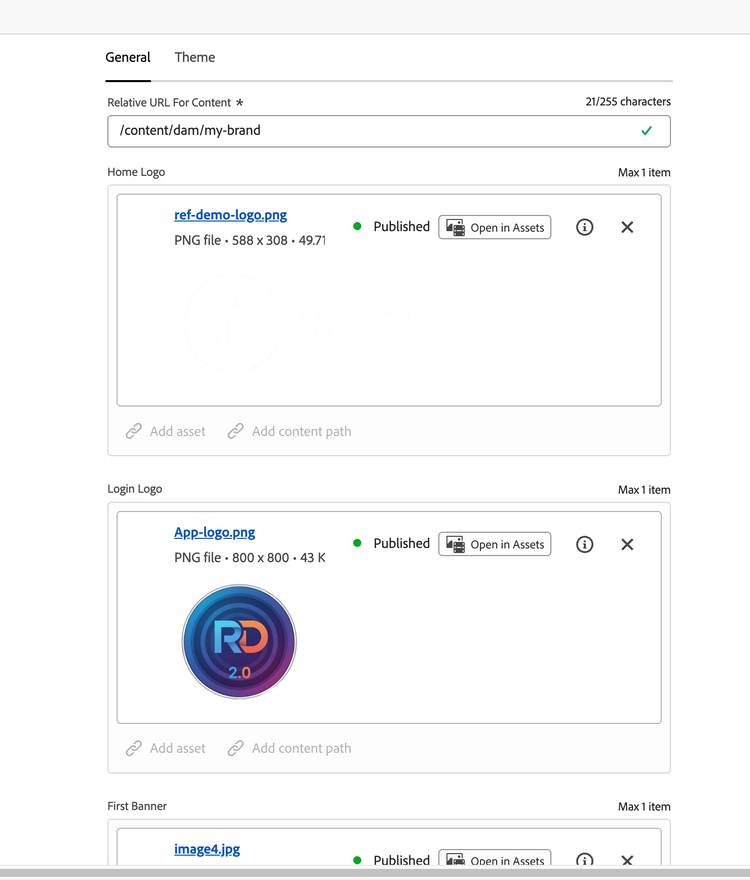
In the General Tab you will find the content pieces of the mobile app, namely
- Login Screen Logo
- Home Screen Logo
- 3 Banners
Theme Changes
Optionally, to enhance the theme of the mobile app to suit your demo needs
- To make the Theme changes head to the Theme Tab
- You can find an exhaustive list of colours
- Primary Colour – Applies to general UI elements in the app
- App Bar Text Colour – Applies to the text colour of the app bar (top bar)
- App Bar Background – Applies to the background colour of the app bar (top bar)
- Button Nav Text Colour – Applies to the text colour of the bottom navigation
- Bottom Nav Background – Applies to the background colour of the bottom navigation
- Button Text Colour – Applies to the text colour for all the buttons
- Button Background – Applies to the background colour for all the buttons
- Refresh Button Text Colour – Applies to the text colour of the floating action button (refresh button in the home screen)
- Refresh Button Background – Applies to the background color of the floating action button.
Once ready with your changes, make sure to publish the content fragment.