Offer Content Fragments
Let’s see how to author a new Content Fragment and how to publish it for the mobile app
- Head to the AEM Start Screen > Content Fragment
- Find the and select My Brand Folder
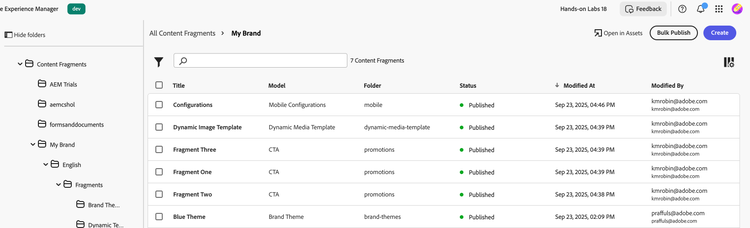
- You can pick any folder under “My Brand” folder to organize your Content Fragment. (We recommend it by organizing them in My Brand > English > Fragments > Promotions folder)
- Once you have selected your location, Click the Create button in the top-right corner or the screen > Content Fragment
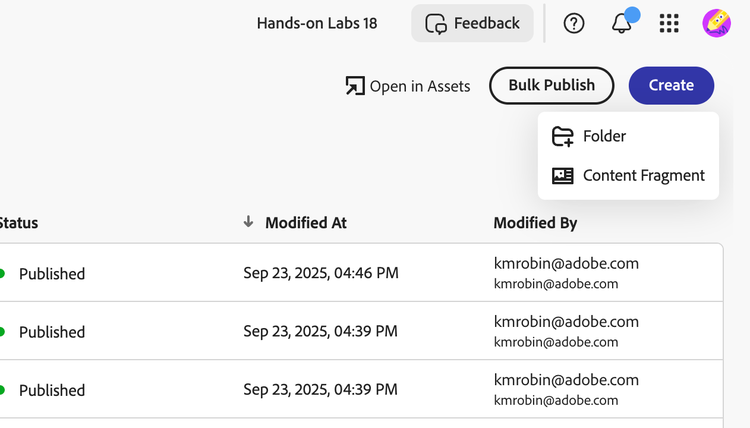
- Select the Content Fragment Model as CTA, give it an appropriate name and title
- Once you are ready with the content, hit the publish button to publish your Content Fragment
- To consume your content fragment in the mobile app, head to the settings screen
- Update the AEM Environment values and fetch the configurations.
- Select the ../my-brand configuration, and apply the changes, you will see the customized app screen appears.
NOTE
Mobile App supports multiple fragments, just author another Content Fragment in the same way discussed.
To remove a content fragment from the mobile app, unpublish the content fragment.