General Authoring
NOTE
Please make sure that you’ve followed the steps mentioned in Getting Started
Here you’ll find general instructions about authoring content in AEM using Universal Editor.
Understand the existing hierarchy
- Navigate to: AEM Start Screen > Sites.
- You will find a site created with name WKND Universal.
- The site has a Language Master Page and then an English Page.
- All the Language copies would be created inside the Language Master Page (in Parallel with English Page).
- Select English Page and click on Edit.
- On the page, from the right-side panel, select Page and click on Properties.
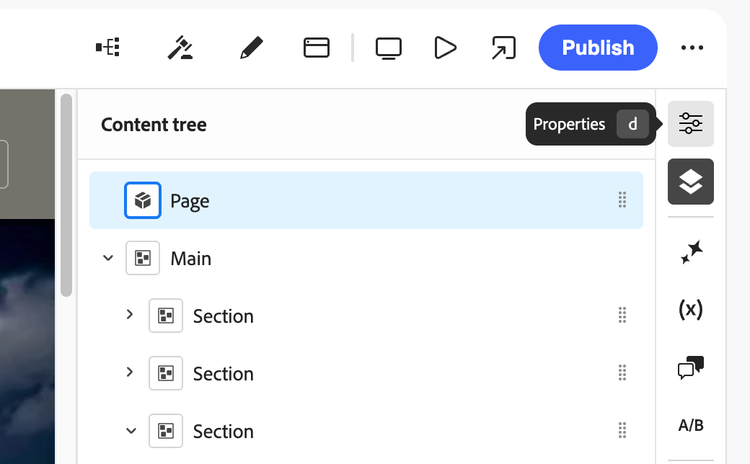
- Here you will see all basic details of the page like title, theme of the page, hostname details, etc.
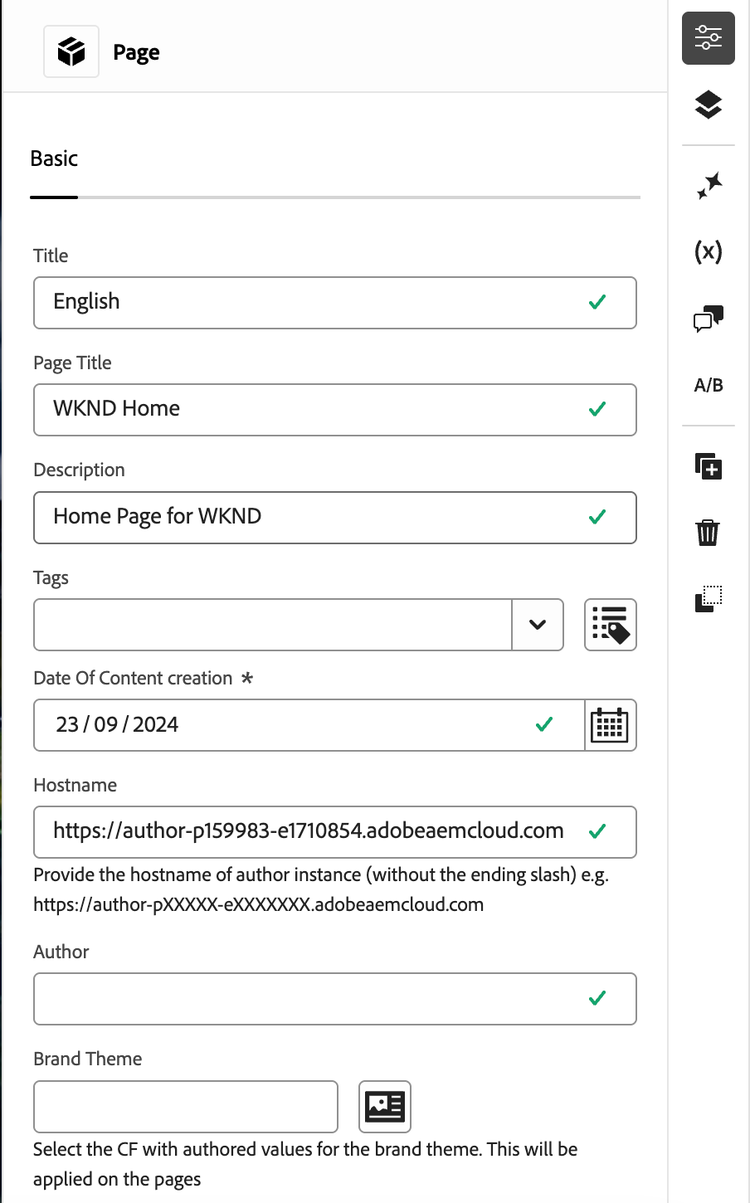
- Expand the section block. It will provide you how different blocks are being used to design the page.
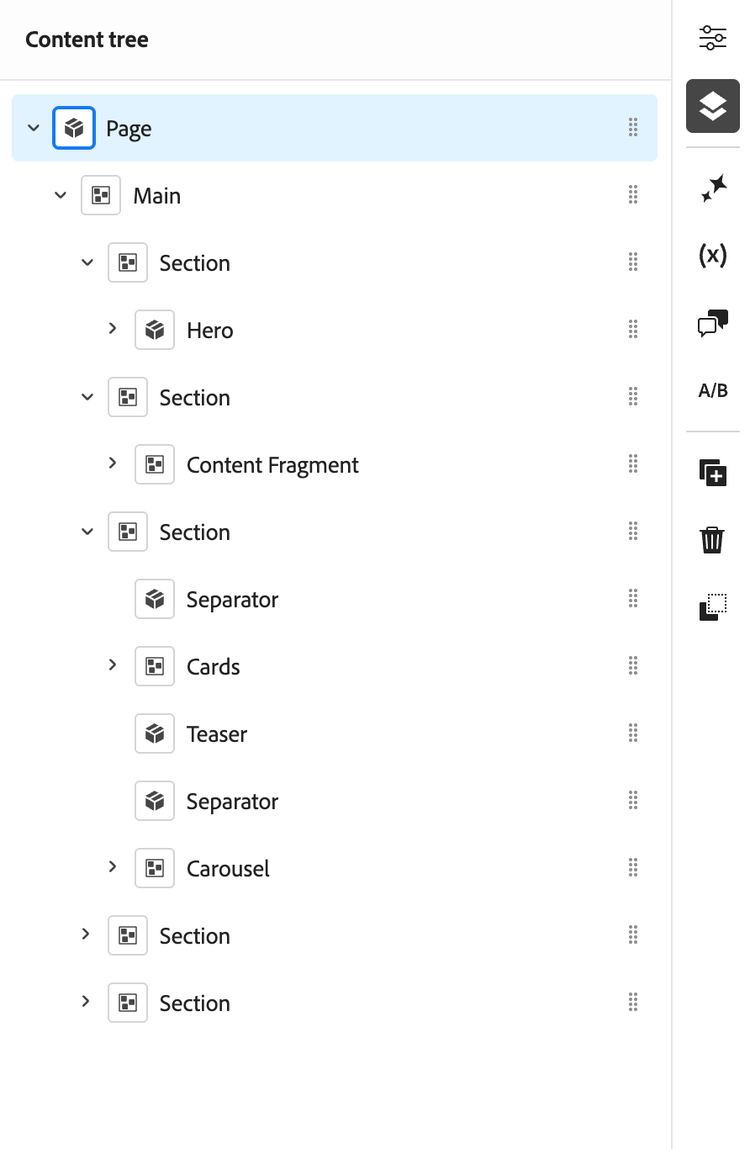
Editing an existing content block
You’ll find all reusable blocks in the Side Panel (right-hand side). Here’s how to use them.
https://s7d1.scene7.com/is/content/AEMHOL/EditPage
Important: Some blocks (e.g. Section, Columns, Cards, etc.) act as high-level containers which can contain child blocks.
Adding a block to our existing page
- Add a block (e.g., Hero, Carousel, Card, Teaser, etc.) onto the page. For now, we are adding a Cards block to our section block. Since, Cards is a special block, it can have different card blocks inside it.
- Added a few Card blocks inside the Cards block.
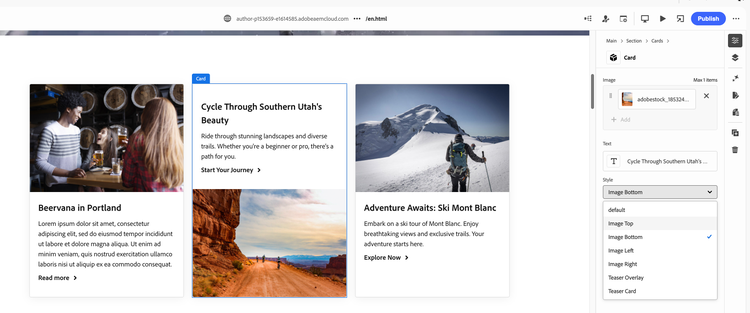
- Go to properties of a Card block to edit its content and configurations.
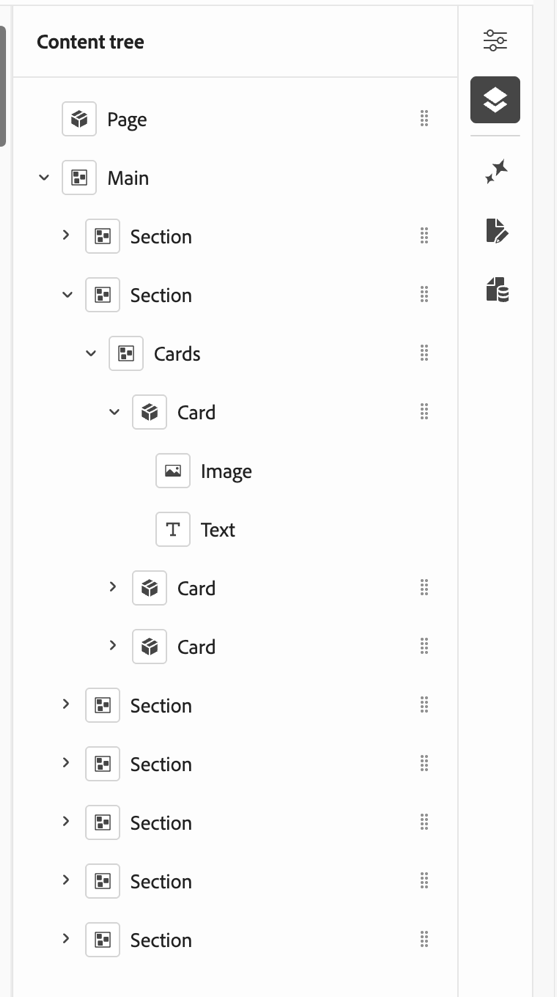
-
Clicking on the right-side Properties Panel of the Card block, below properties appears.
- Images (via Dynamic Media/DAM)
- Links and CTAs
- Style options available on certain blocks (e.g. Card block).
-
Author the different properties of the block as per your requirement.
Creating a new page
- Navigate to: AEM Start Screen > Sites > WKND Universal > Language Masters > English
- Click Create > Page button and choose Article Page template.
- Provide a Title and open the page for editing.